


Windows
Go to this link and let the installer download.
In your downloads, double click 'OfficeSetup.exe'
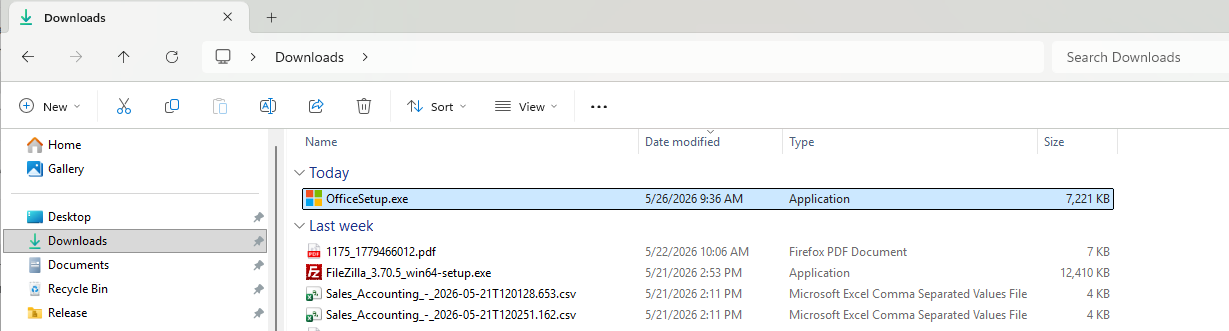
Click through the installation windows, if any. All of the default values should be fine.
The installation may take a while. Once it's done, you may need to restart your computer. Once it's installed, open one of the apps, for example: excel, and sign in using the profile icon near the top right.
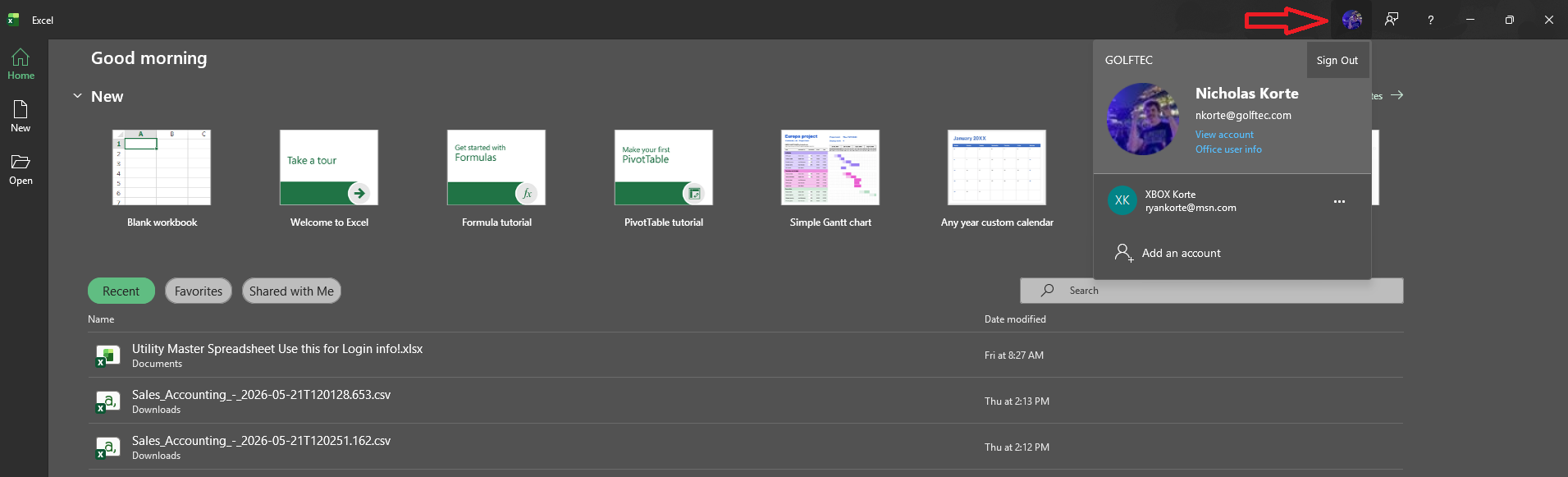
Then sign in using your email, password, and multi-factor authentication (if applicable).
Once that's done, you should be good to start using the 365 apps on your computer. Reach out to IT with any issues following the directions in this article.
Mac
For macs, the process is very similar.
Go to this link instead. Then open your downloads folder and follow the steps from above for the windows process. Double click the installer, click through the installer windows (choosing the defaults), then restart your computer and open the application. Finally, sign in with your email, password, and multi-factor authentication (if applicable).

