


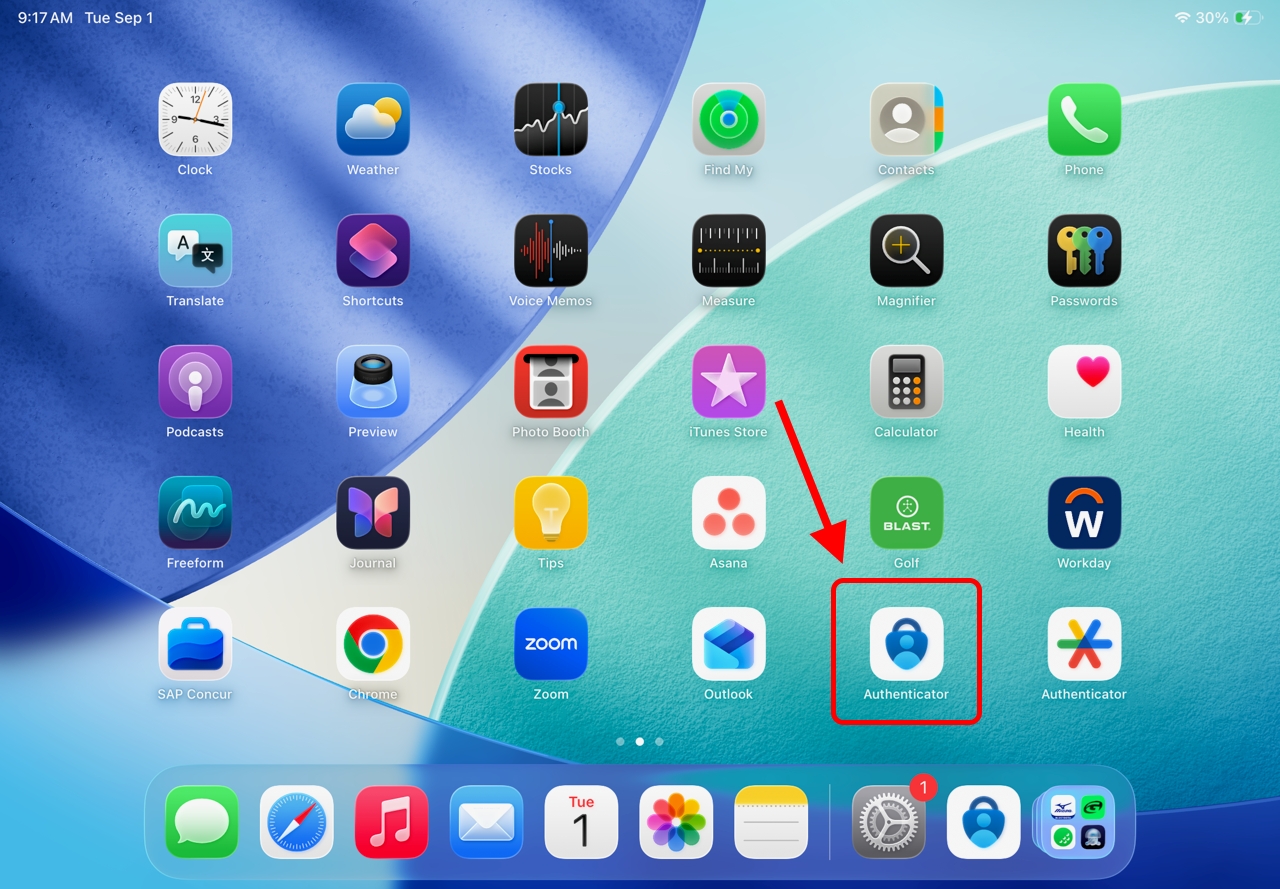
1. Open the Microsoft Authenticator app on your Coach iPad. (This App is already pre-installed on all GOLFTEC-issued Coach iPads)
NOTE: If you do not have a GOLFTEC-issued Coach Pad, then you will need to download the Microsoft Authenticator app to your personal device from either the Apple App Store or Google Play Store.
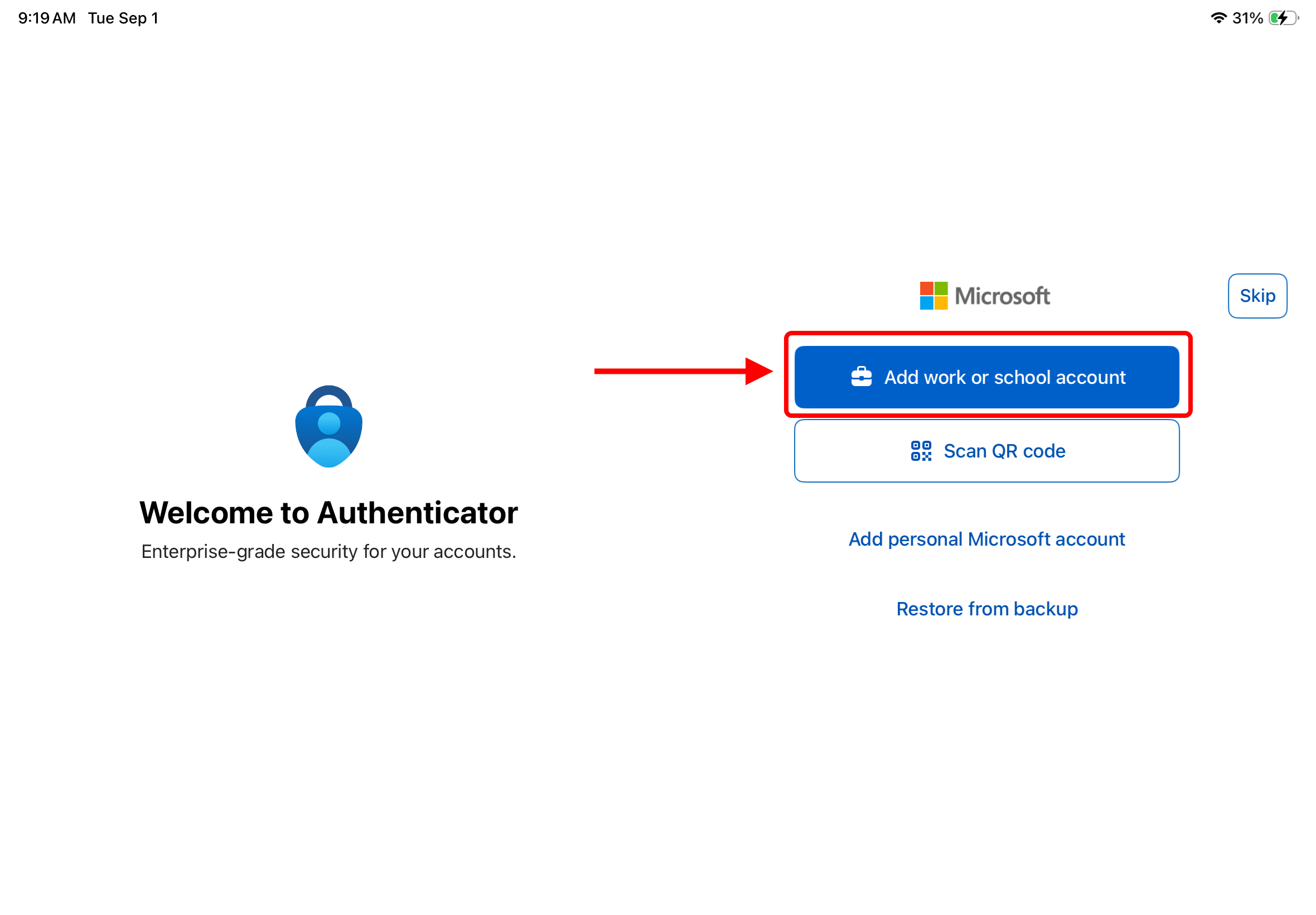
2. Tap "Add work or school account".
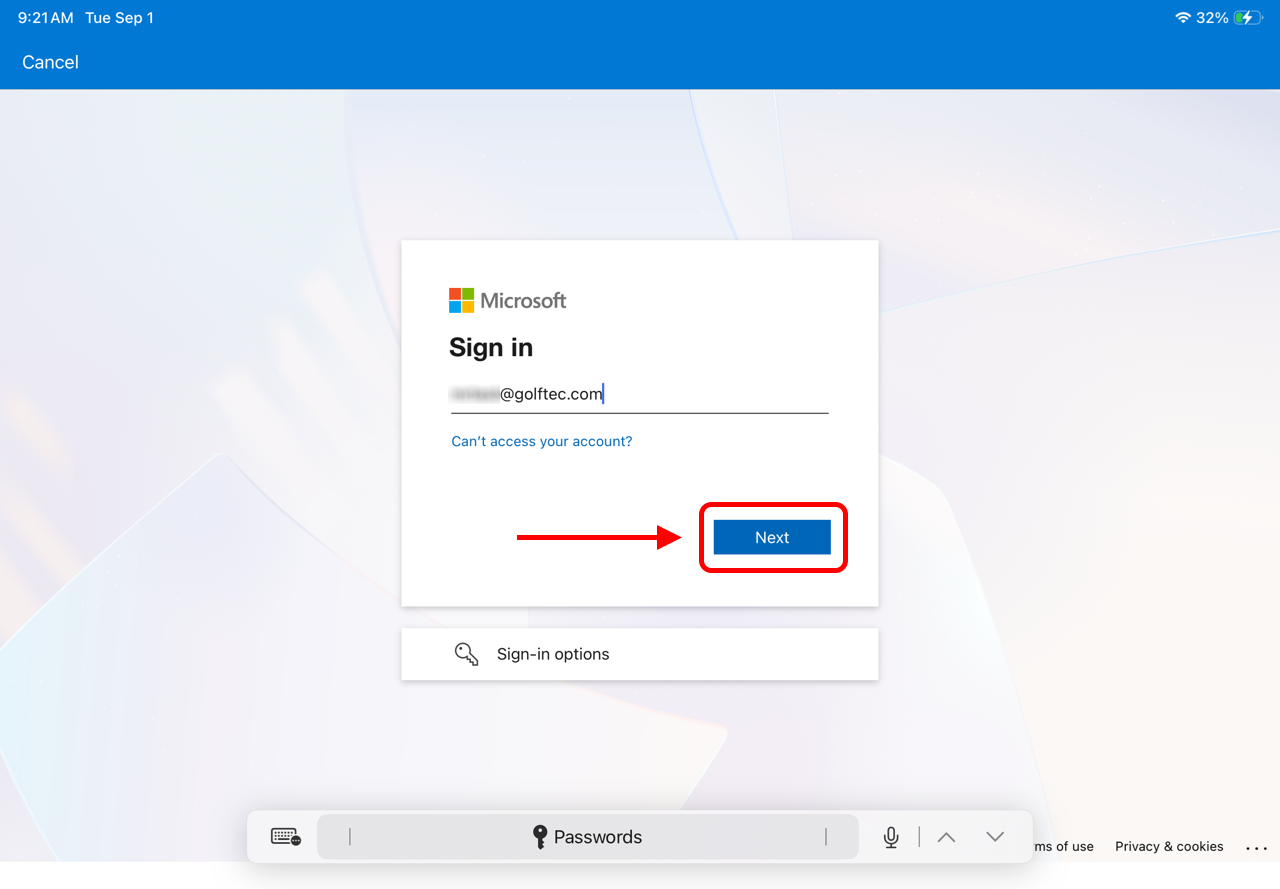
3. Type your email address and tap "Next".
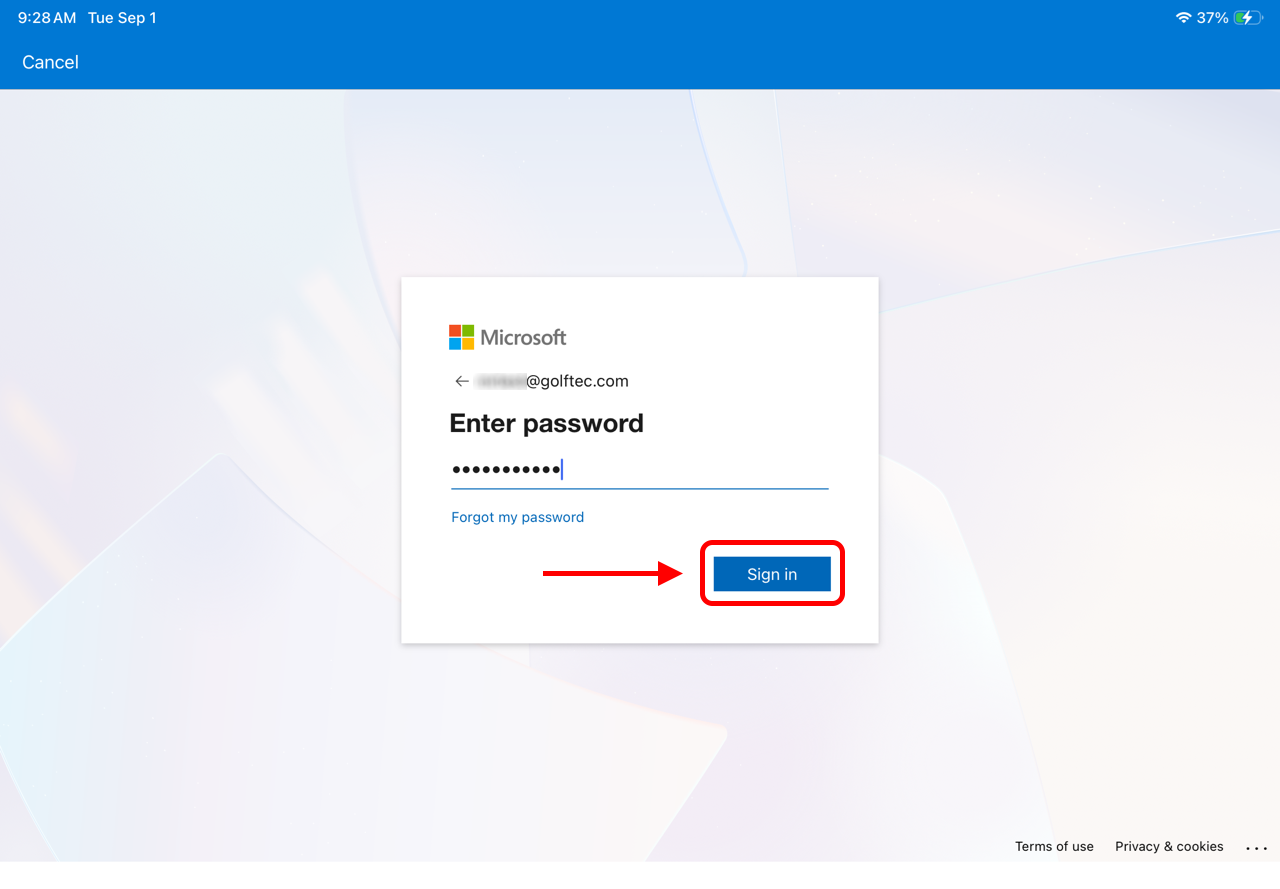
4. Type your email password and tap "Sign in".
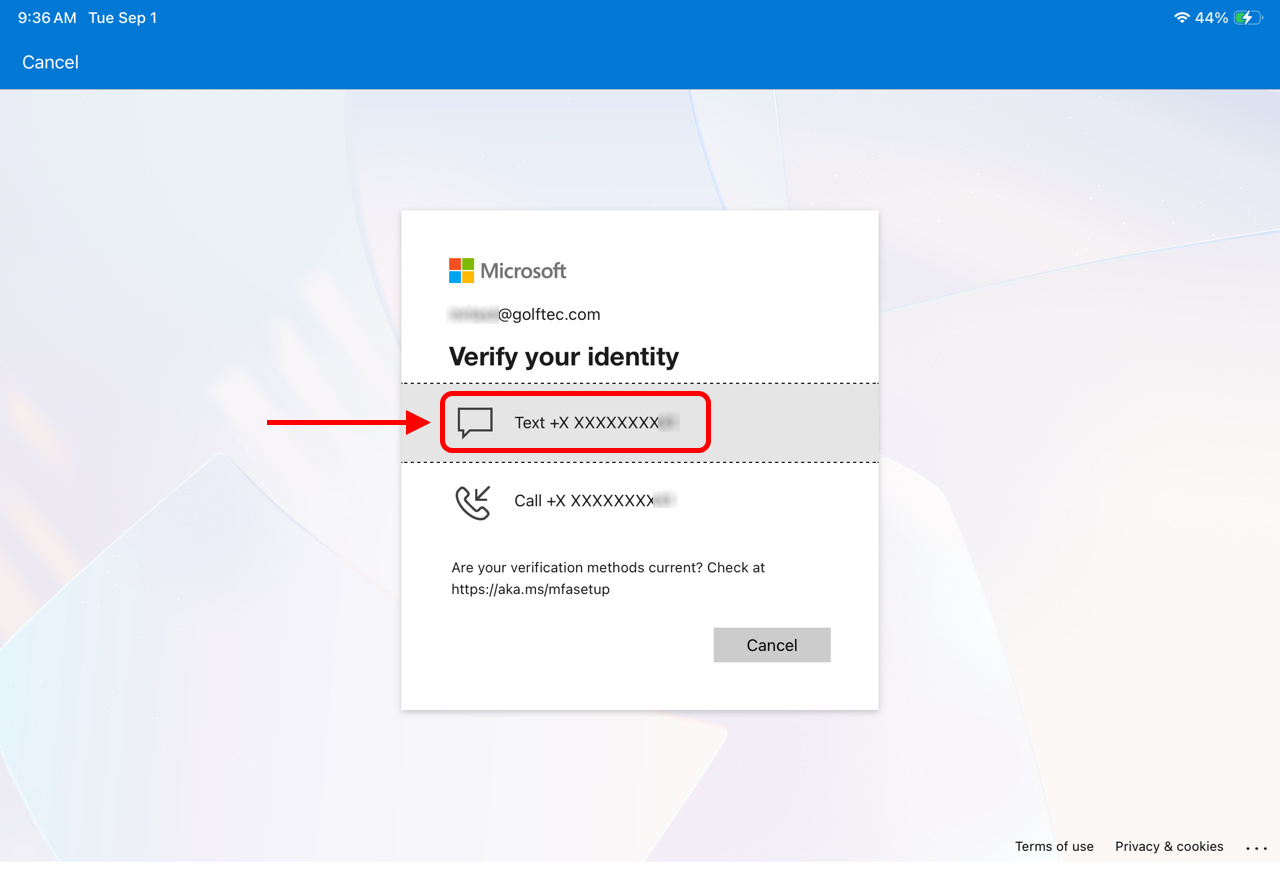
5. If asked to verify your identity, tap "Text" and enter the 6-digit code sent to your phone.
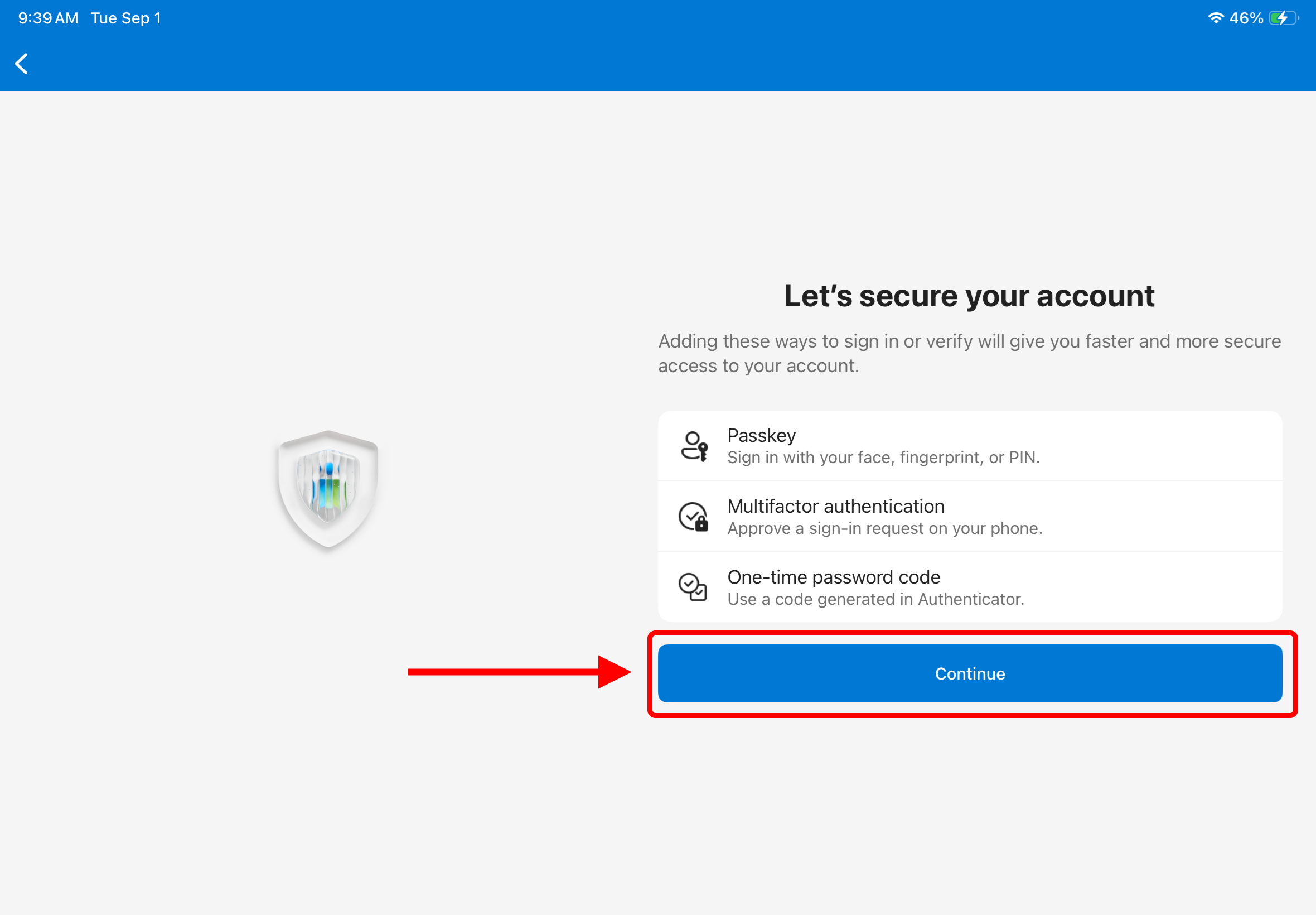
6. Tap "Continue".
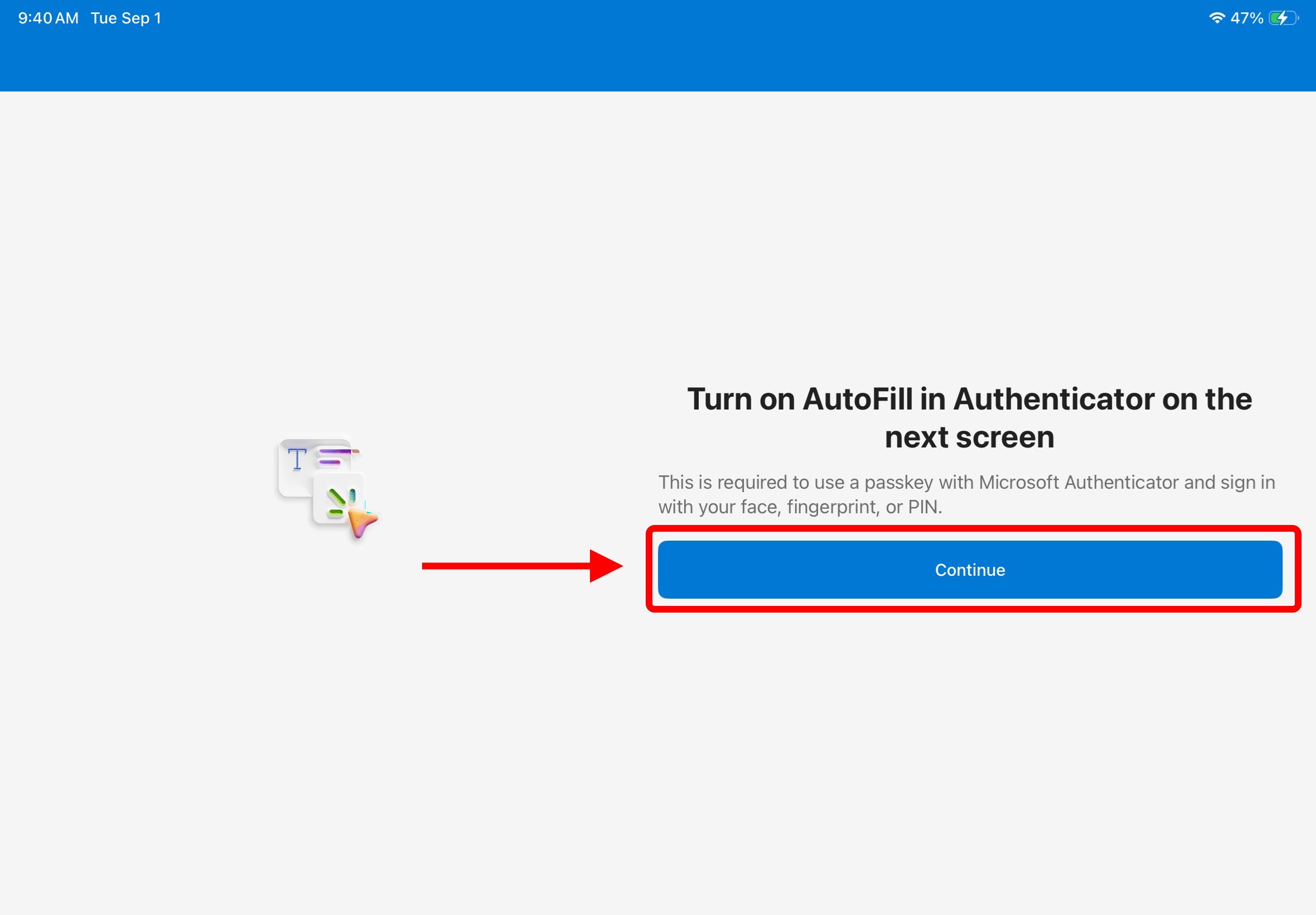
7. Tap "Continue".
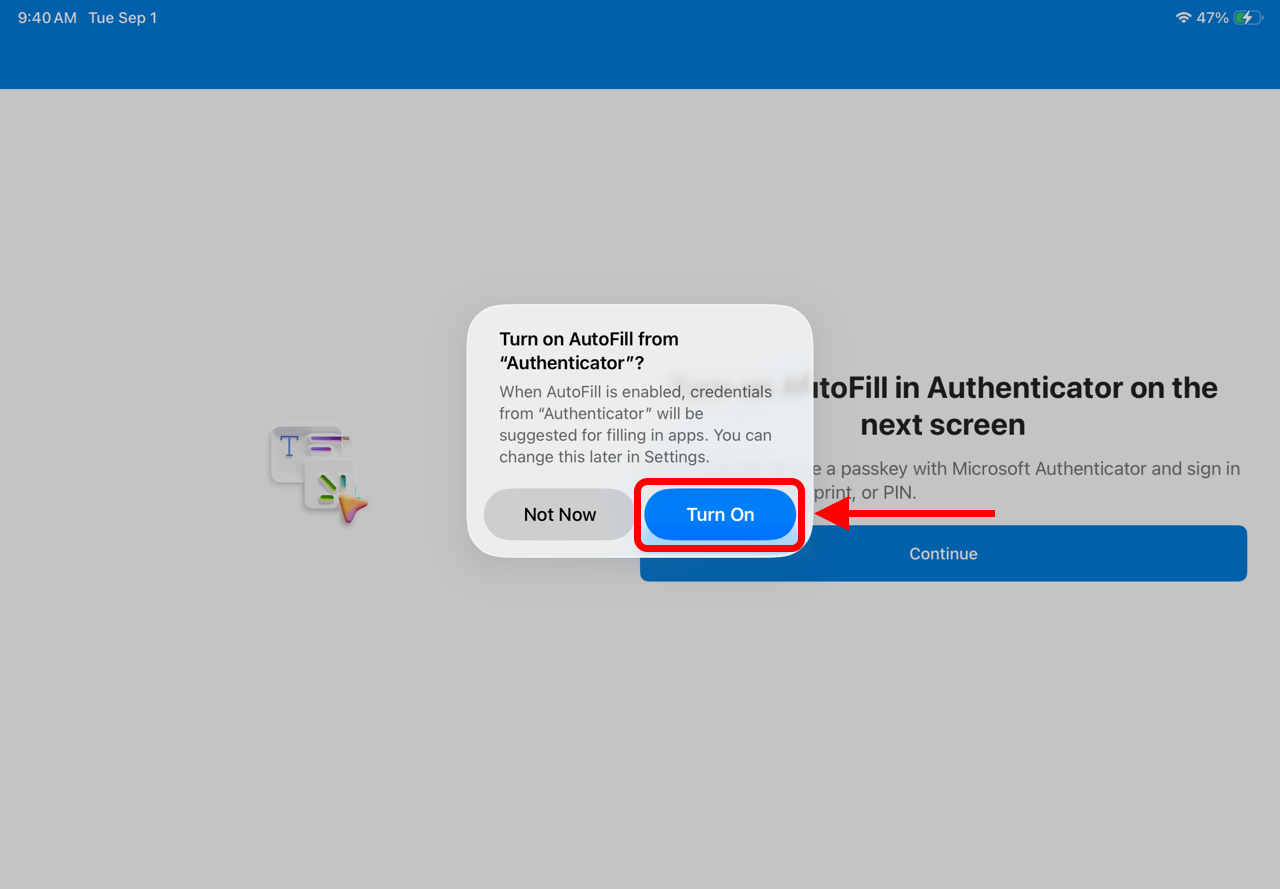
8. Tap "Turn On".
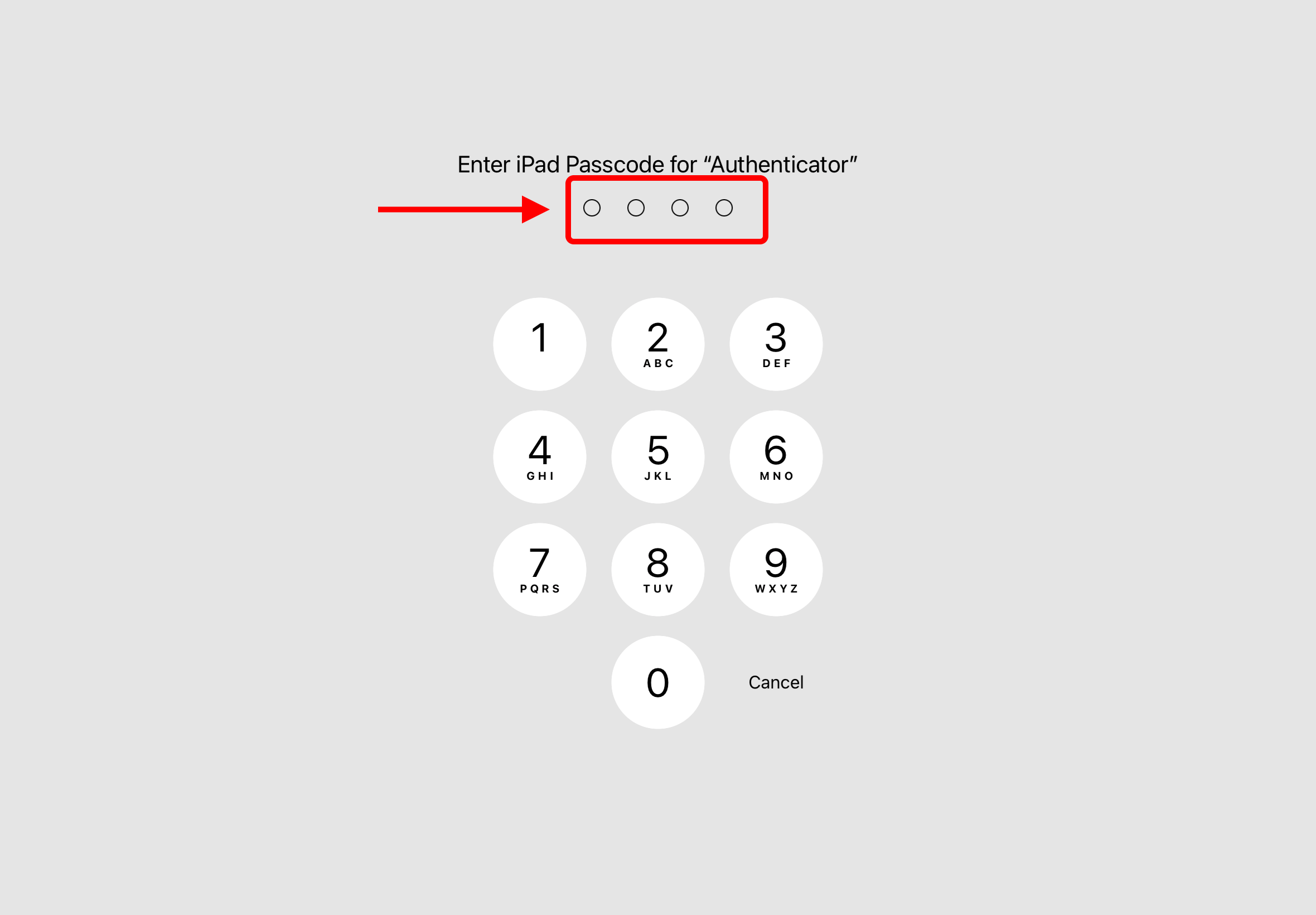
9. Enter your iPad's Passcode.
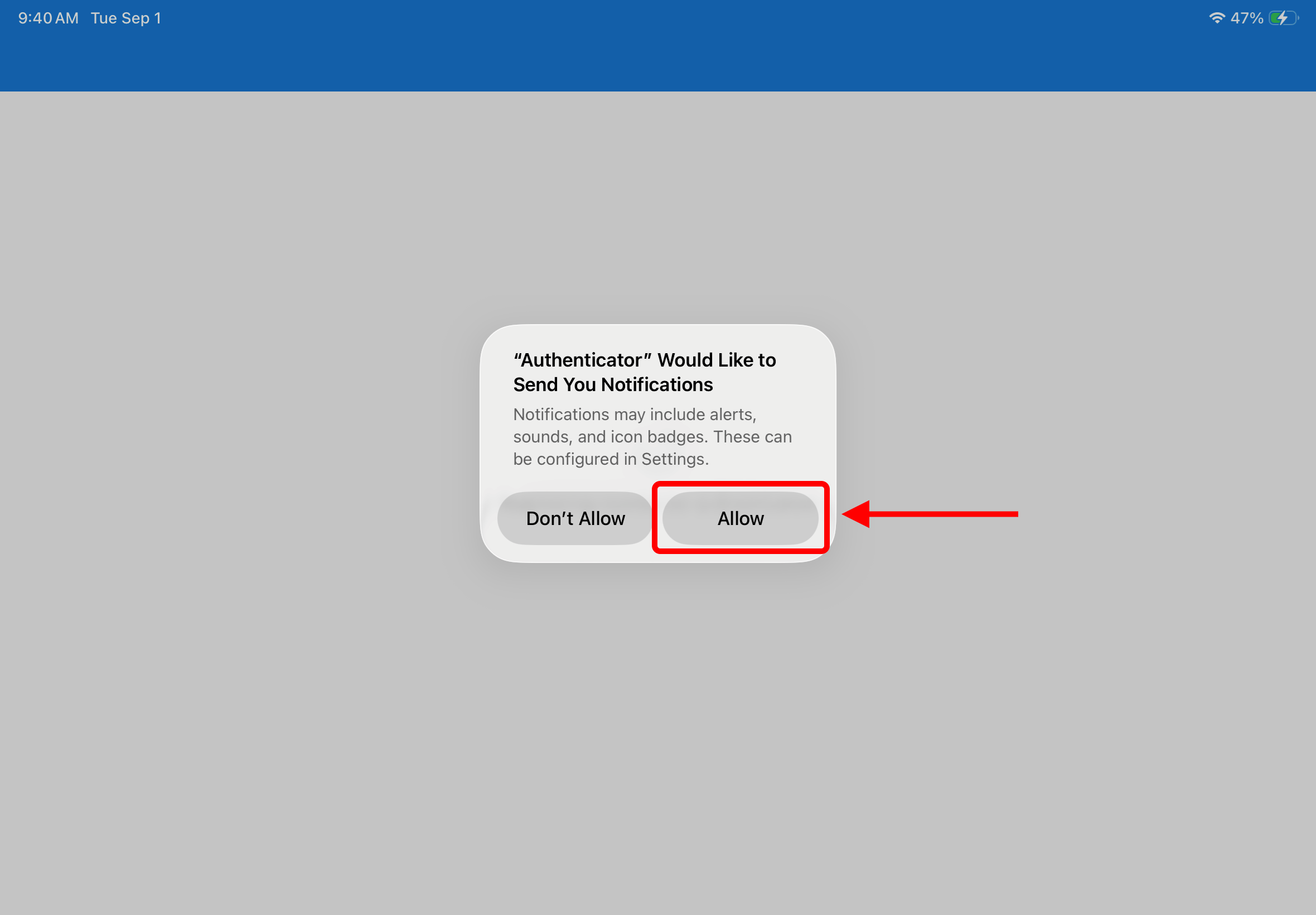
10. Tap "Allow".
11. Tap "Done".
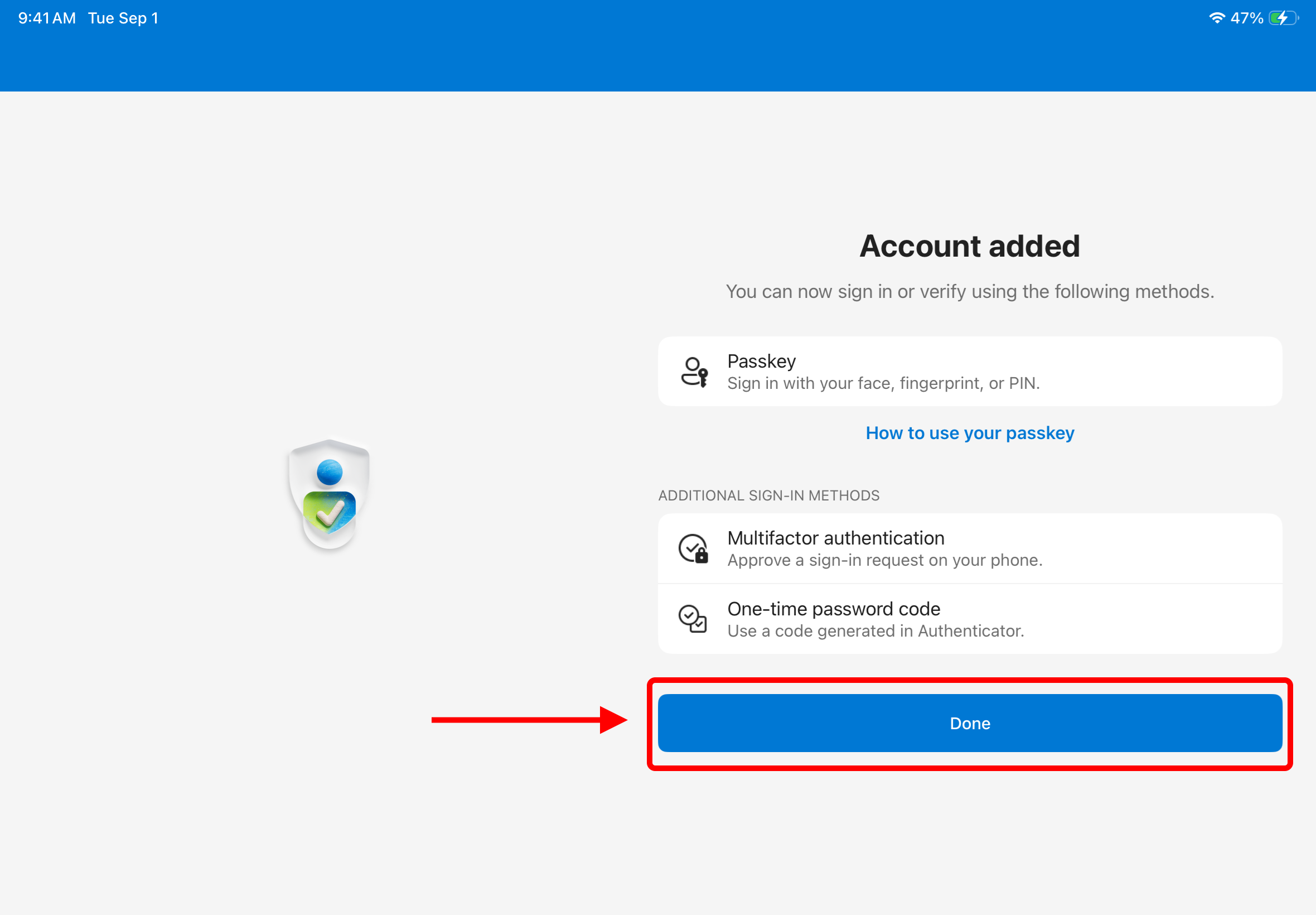
This conclude the process. In the future, you will be periodically asked to validate your identity when logging into your email account. Be sure to have your iPad and the Microsoft Authenticator ready.
Additionally, if you ever have your iPad replaced, you will need to repeat these steps above on your new iPad.

