


Go to this link:
SH_D36_PCL6_PS_2512a_EnglishUS_64bit.exe
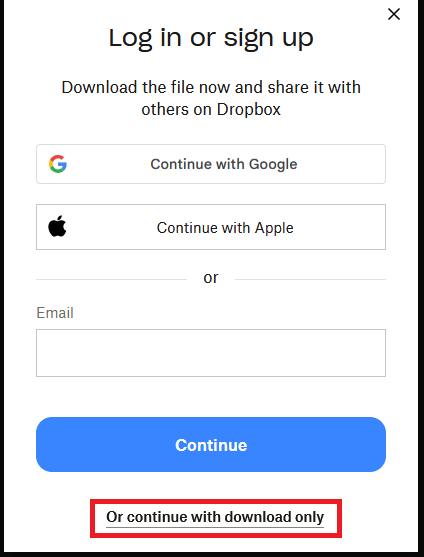
Click download and then "Or continue with download only"
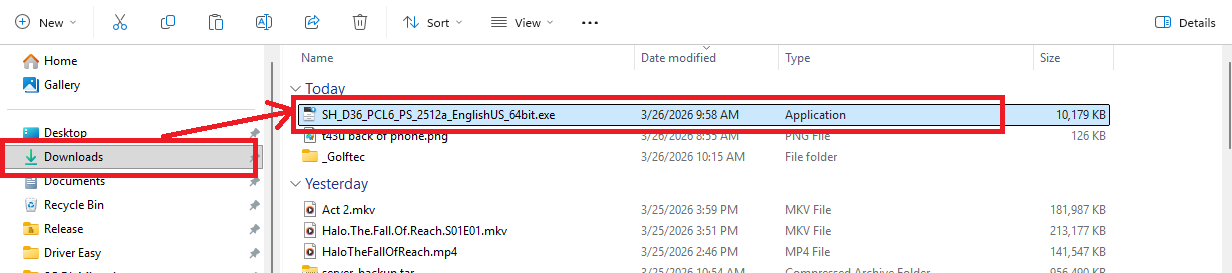
Wait for it to download and then go into your downloads folder and double click it:
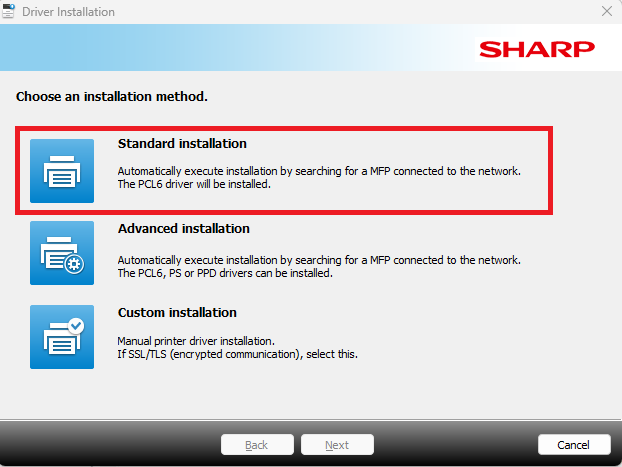
Then click 'Next' when it asks where you want to save to, the default location is fine. Then click 'install' or 'finish'. When it's done, a window that looks like this will pop up, choose 'standard installation'
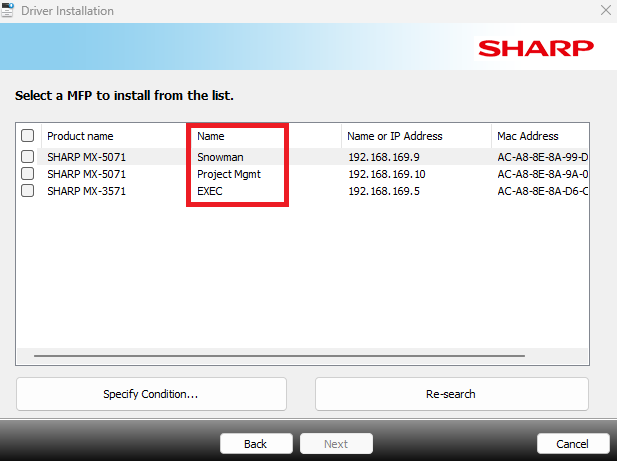
A list of printers will show up. If there are duplicates you can choose either. Select whatever printer(s) you want to add to your computer. Then choose 'next' and then 'next' again on the following screen.
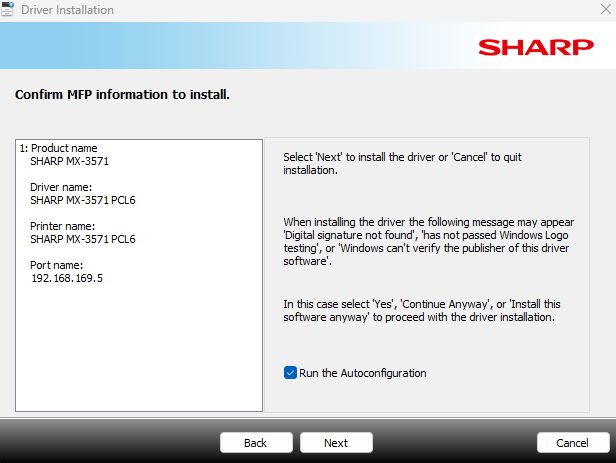
You can print a test page or go to Adobe (or whatever application you are trying to print from) and try printing from there.
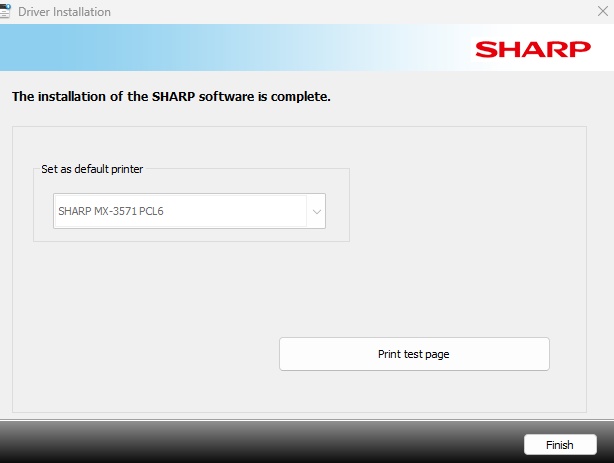
Choose 'finish'.
If you still cannot print, sometimes you just need to restart your computer. If you cannot print after a restart of your computer, reach out to IT.
The printers will not have their common names, so if you want to rename the printer, you can go to the Windows settings->Bluetooth and Devices->Printers and Scanners and then choose the printer you want to rename.
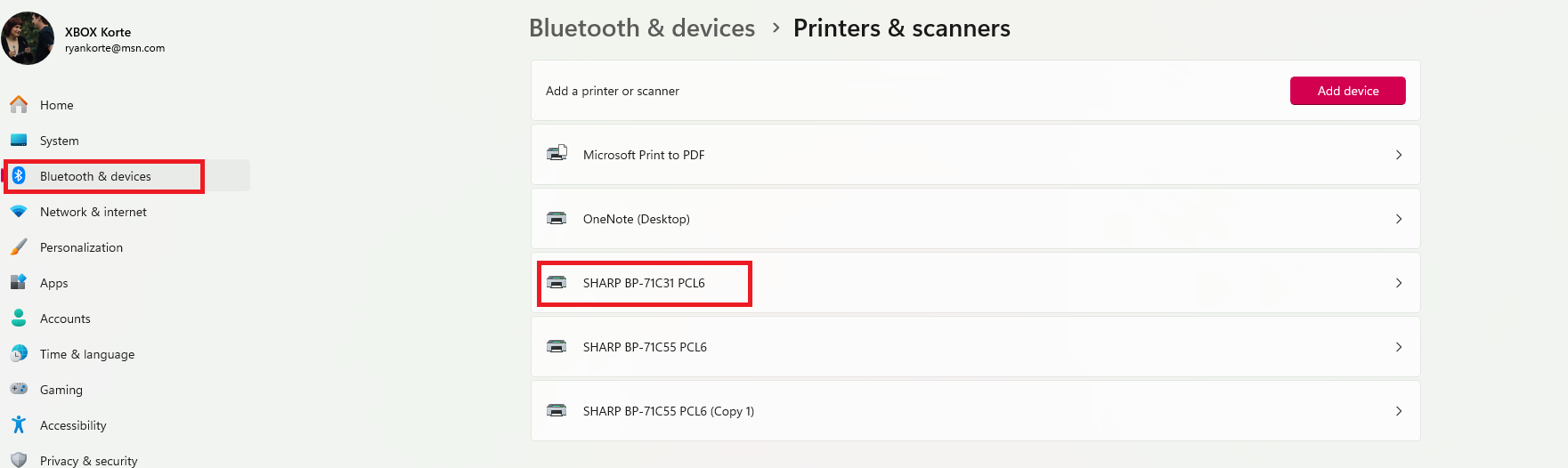
Then choose "Printer Properties"
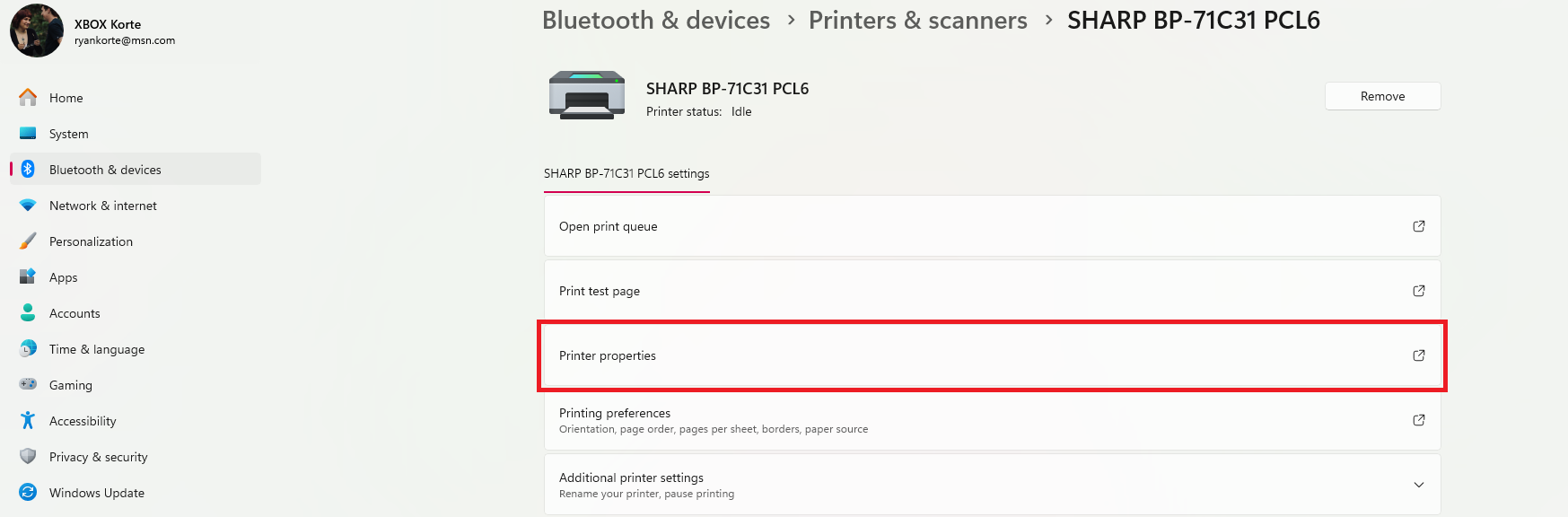
And rename it appropriately:
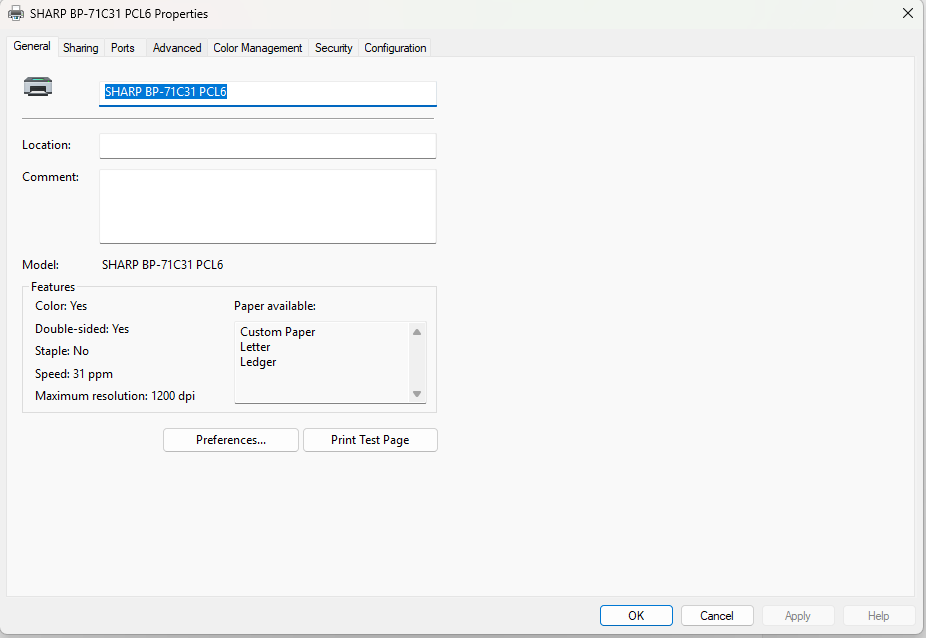
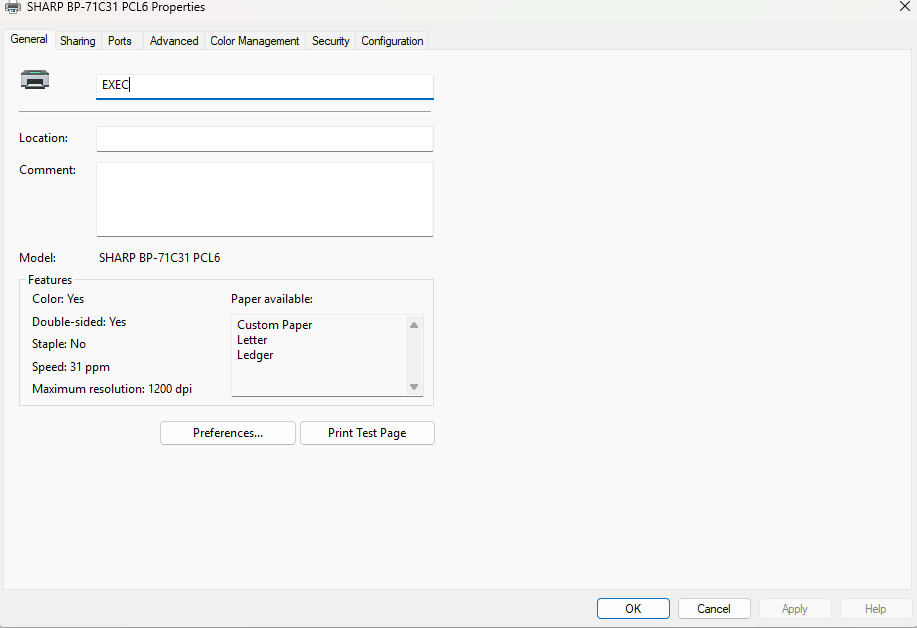
Then hit 'OK'
It will not update immediately in the settings so don't worry if it looks like it didn't update. Just go try to print something and it should have the updated name in that application.

