20
20
Go to this link and download Dropbox for Windows:
https://www.dropbox.com/install
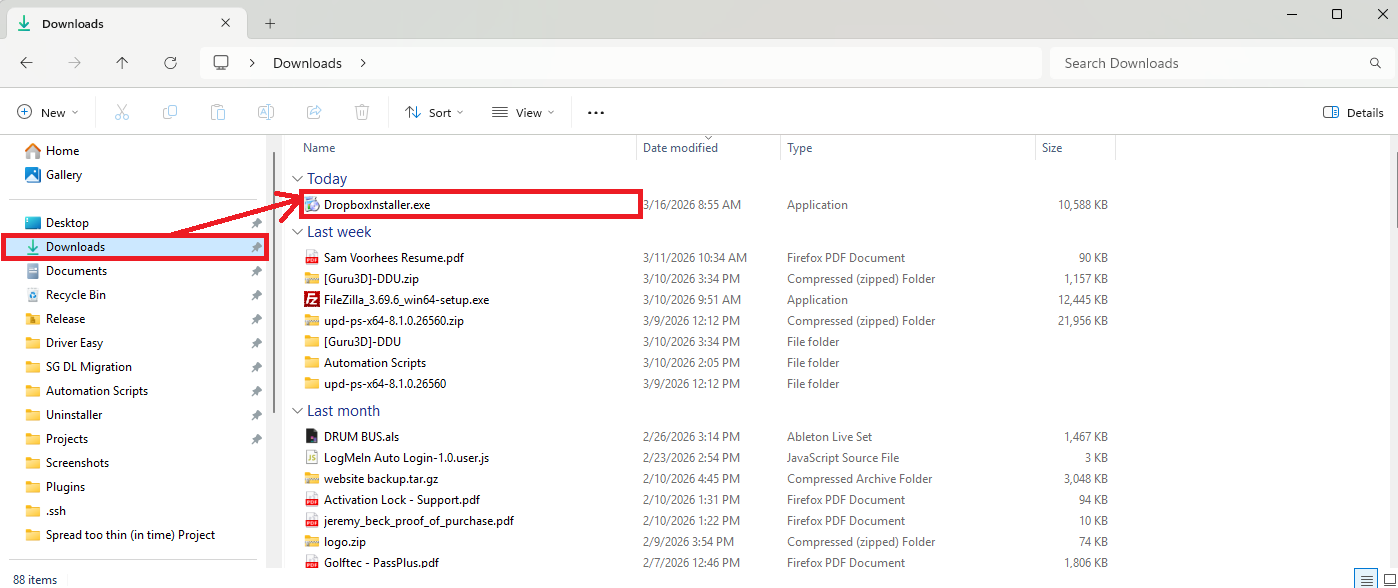
Once the download is done, go to your downloads folder on your computer and double click the installer.
Once it's done installing, it will prompt you to sign in. Use your Golftec email and your Dropbox password to sign in.
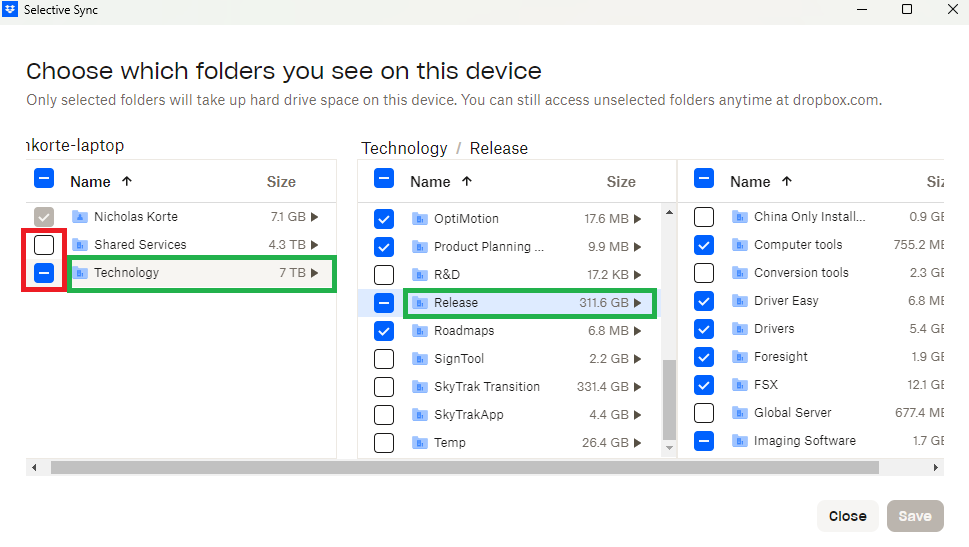
During the setup process, it will ask you to select which files you want to sync. You need to deselect unused folders, otherwise your computer will run out of space trying to sync terabytes of files. You can deselect entire folders (red box in image below) or you can click into the folder and deselect subfolders (green boxes in image below). You always change your sync settings later if needed.
Once that's done, it will start syncing.
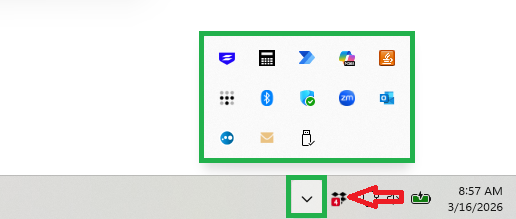
Now you should see an icon in the bottom left that looks like the one the red arrow is pointing to. Basically the Dropbox logo, it may or may not have a red box with notifications like mine does. You might also need to click the up arrow (green box) to pull up the additional context menu.
Now Dropbox is installed.
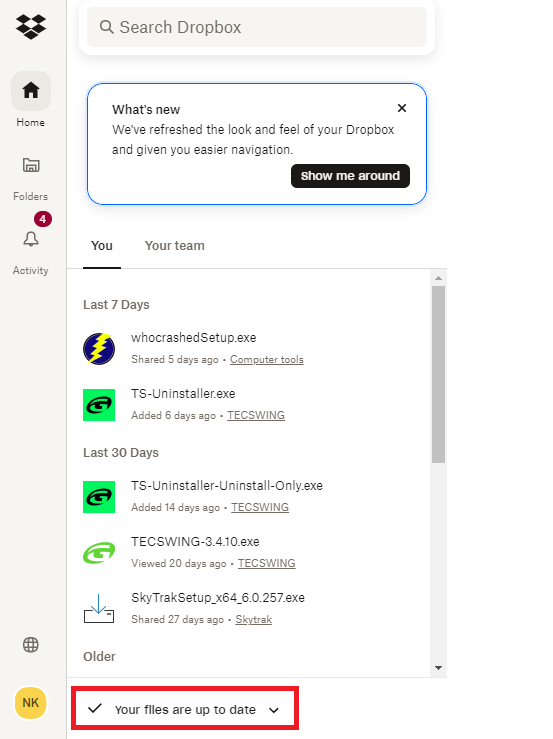
If you click it it will pull up a menu like this. It will say "Syncing files..." or similar. Once that says "Your files are up to date", then you know Dropbox is done and you can start using your files as normal.