


 60
60
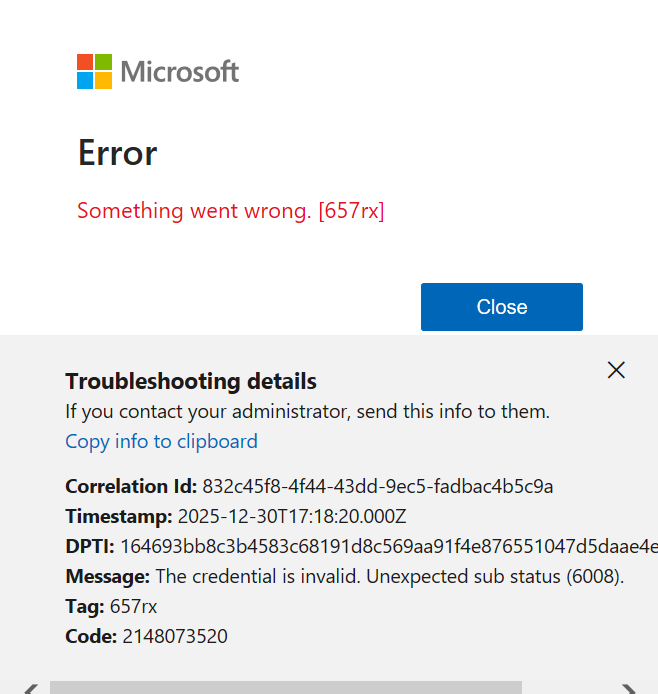
If you are getting this error or similar, you will need to completely remove your Microsoft from your computer, which is not a quick process.
First, start by signing out of your account in the windows settings:
1. Go to Windows Settings->Accounts->Access Work or School
2. Click the arrow next to your Golftec account and choose 'Disconnect'
Next, go to a 365 app (Powerpoint, excel, etc [not Outlook]) and sign out of your account. Do this by choosing your profile icon in the top right and clicking sign out.
At this point, try signing back in and if you keep getting the same error, move to the next step.
Clear any cached credentials from Microsoft:
1. Hit the windows key and type 'Credential' and choose 'Credential Manager'
2. Go to Windows Credentials
3. Delete anything that has the word Microsoft in it by clicking the arrow on the right and choosing 'remove'
4. If you see anything that mentions 'Azure', 'ADAL', 'Office', or 'AD' delete those too
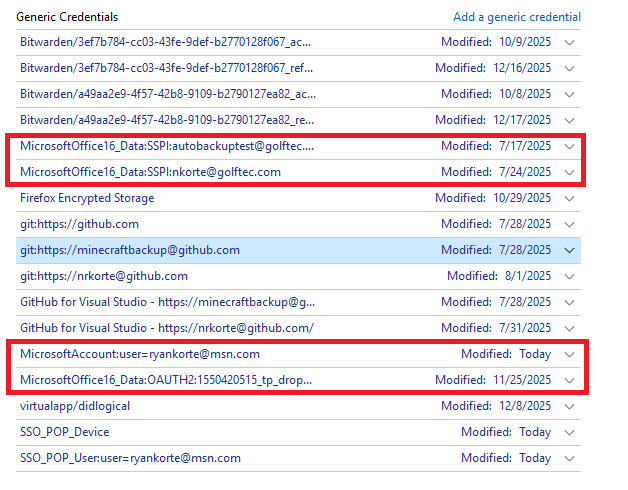
Then try again. If you cannot sign in still, move on to the next step:
1. Hit the Windows key and type 'Control Panel'
2. Choose small icons and then 'Mail (Microsoft Outlook)
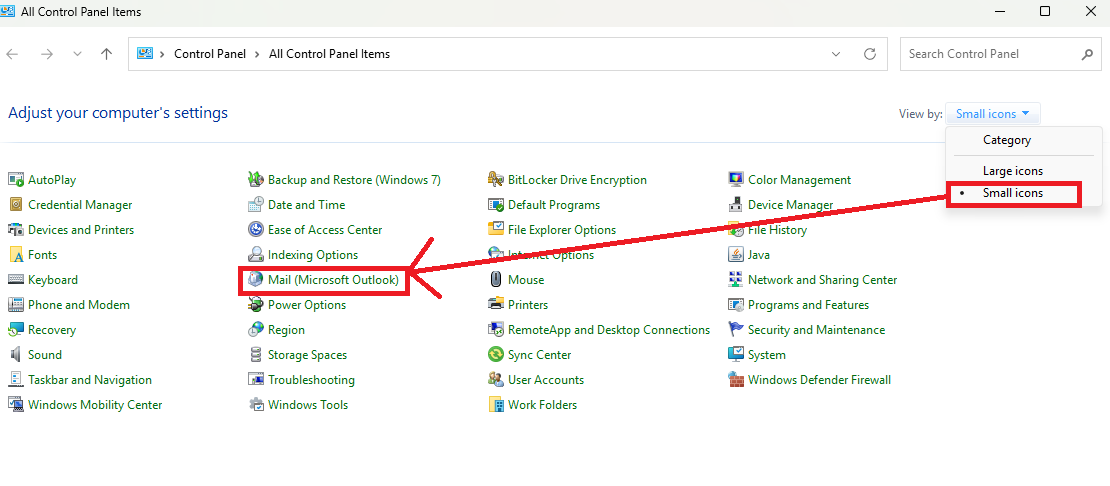
3. Choose 'Show Profiles'
4. Remove the account listed in there
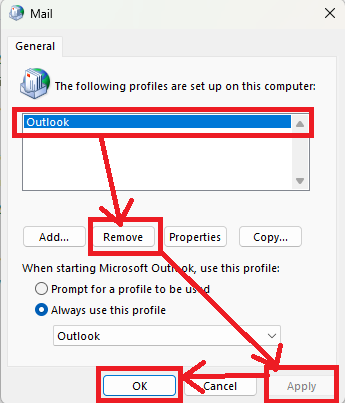
Then try signing in again.
If you still cannot sign in or if you are getting an error, let IT know that you've worked all of these steps. We cannot help you if you have not already done all of this.
Thanks!

