


Reloading Dropbox on Windows

Jan 29, 2026
 70
70
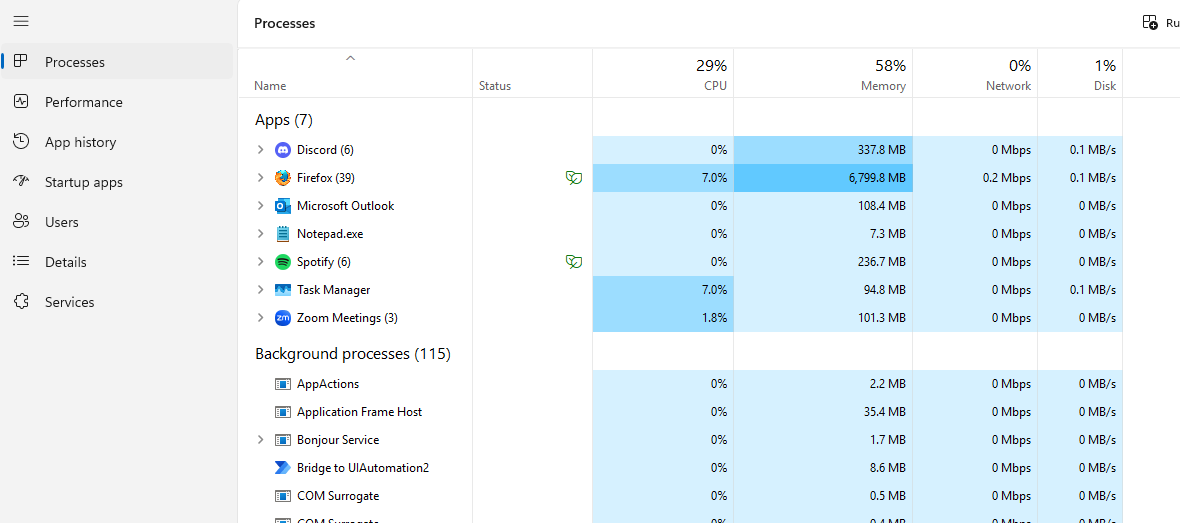
Hit ctrl+shift+esc. This will open your task manager. Give it about 10-15 seconds to load the currently running processes. Then you should see something like this
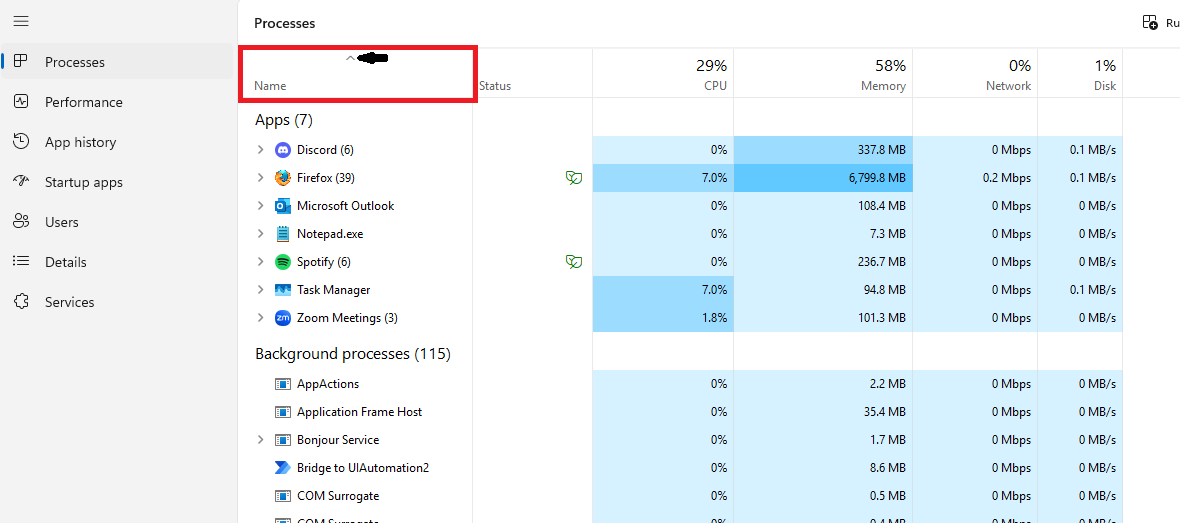
At the top, click the name tab so the arrow above it is pointing up
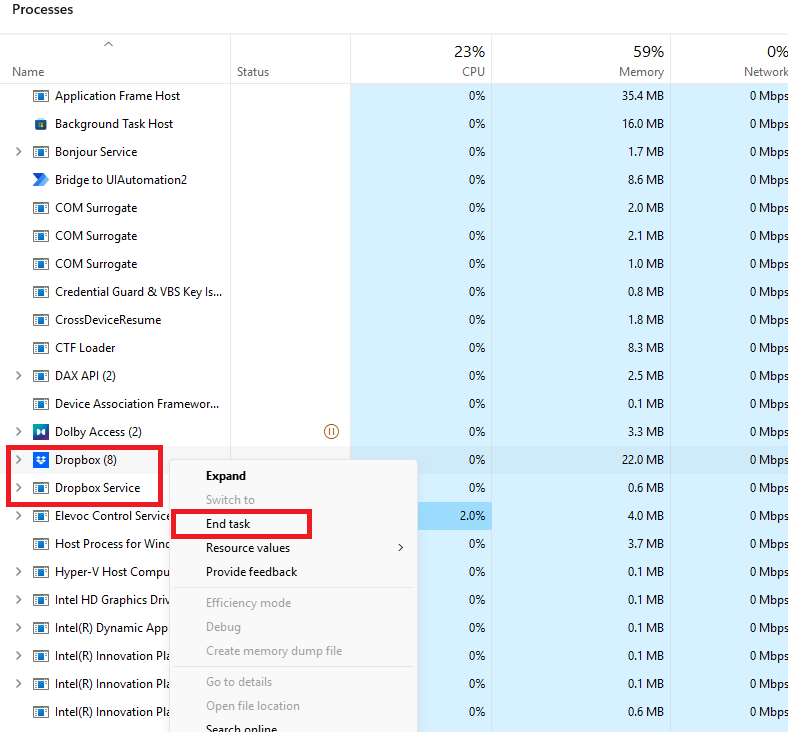
Then, scroll down until you find dropbox (and dropbox service if it's there) and right click it/them and choose "End Task"
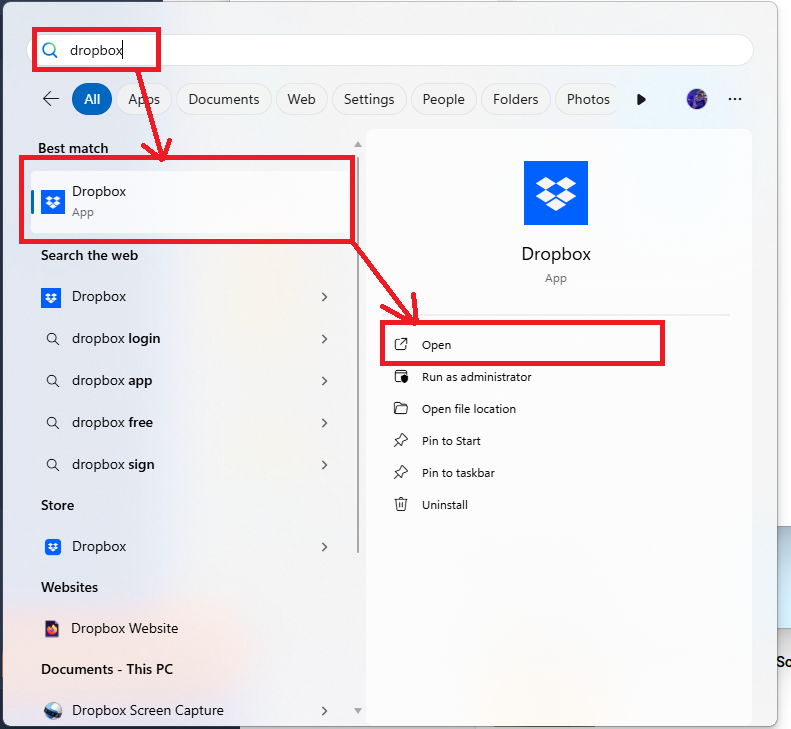
Then, close out of the task manager and hit the windows key, type dropbox, and run it:
Then wait a minute or two, this symbol should show up (you may need to hit the up arrow [green box]):
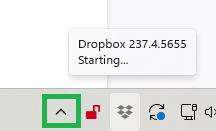
Once it's done, you will see something that looks like this below. Click the dropbox icon and wait until it says "Your files are up to date"
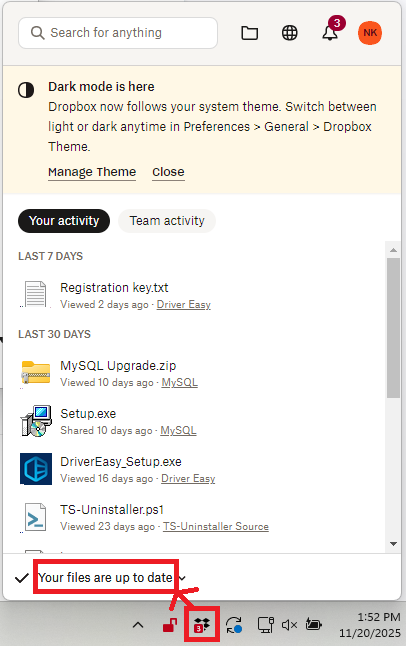
Once you see that, try opening your dropbox file again.

