16
16
NOTE: It is highly recommended that you perform the following steps using a desktop browser as you will need to scan a QR code with your phone or iPad.
1. Open your Microsoft account page here: https://aka.ms/mfasetup
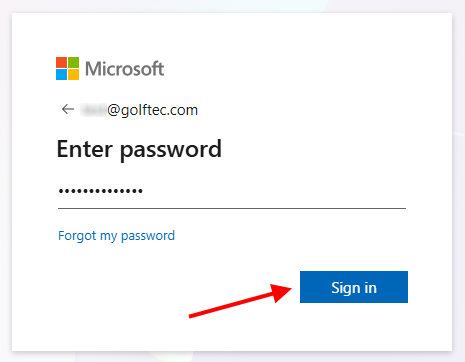
2. Log in with your GOLFTEC email credentials.
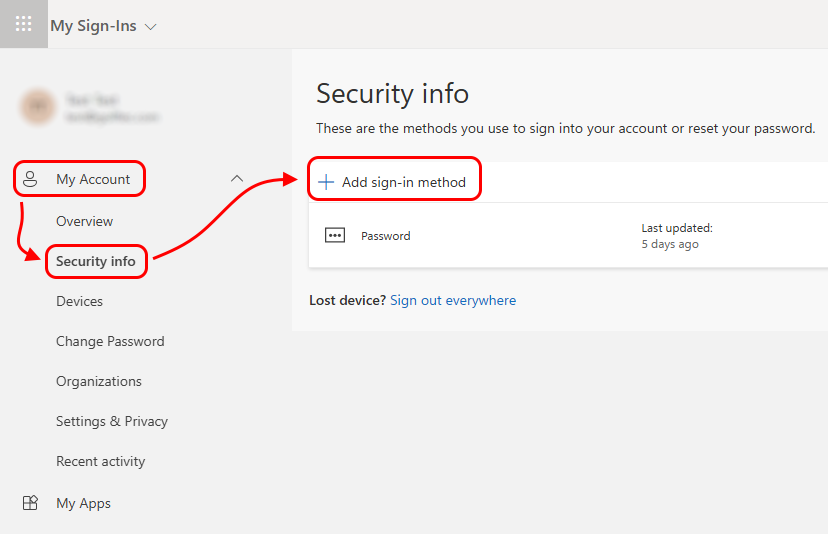
3. Click "My Account > Security info > Add sign-in method"
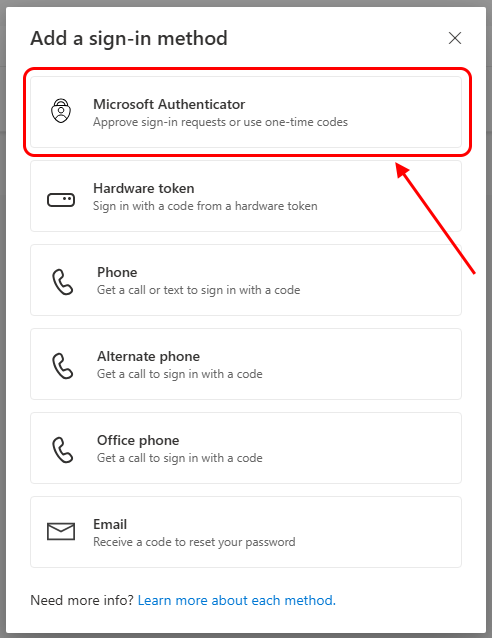
4. Click "Microsoft Authenticator"
5. Download the Microsoft Authenticator app on your phone or iPad and click "Next". (Corporate GOLFTEC Coaches already have the Microsoft Authenticator App pre-installed on their iPads)
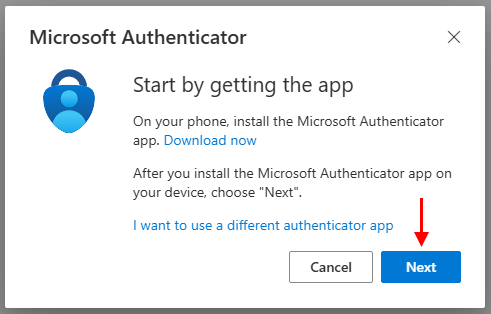
6. Open the Microsoft Authenticator app on your phone or iPad.
7. Click "Next"

8. Open the Microsoft Authenticator app and scan the QR code with your phone or iPad's camera.
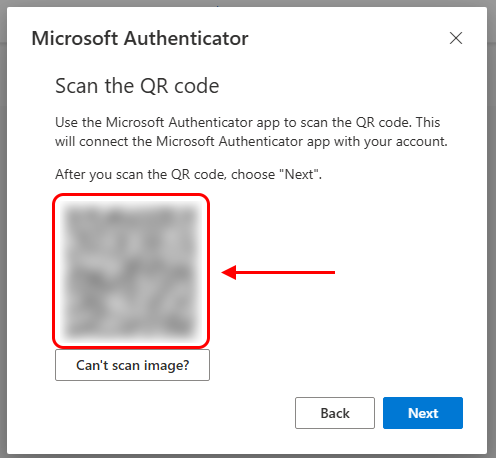
9. After you have successfully scanned the code, click "Next"
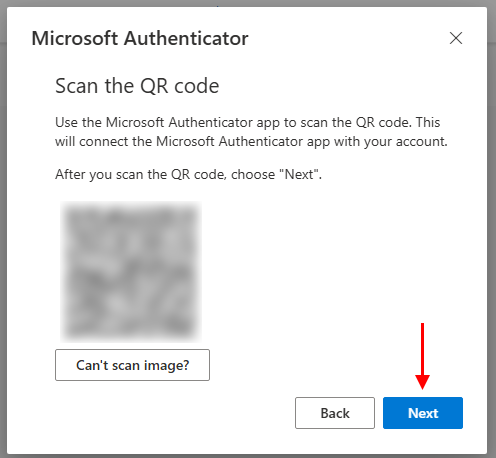
10. You will then be asked to enter a code inside your Microsoft Authenticator app to test it out.
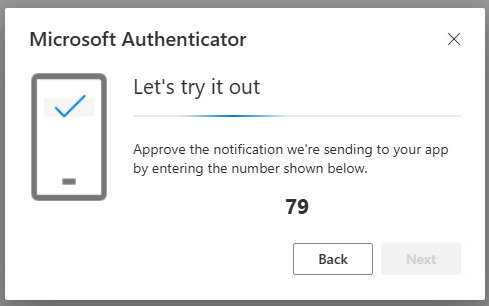
11. A confirmation screen will appear, then click "Next"
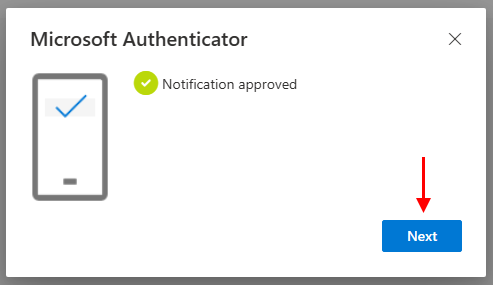
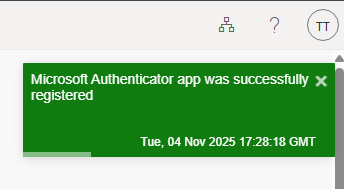
12. A popup notification in the upper-right hand corner of the screen should confirm that you have successfully registered the Microsoft Authenticator app