766
766
1. Using a desktop browser, open your Microsoft account page here: https://aka.ms/mfasetup
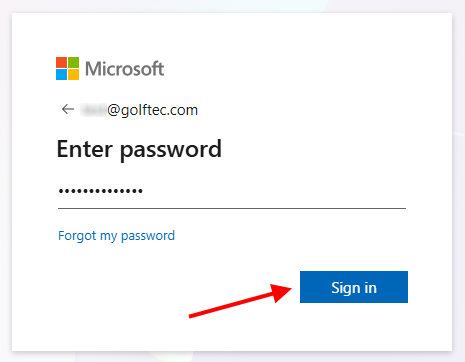
2. Log in with your GOLFTEC email credentials.
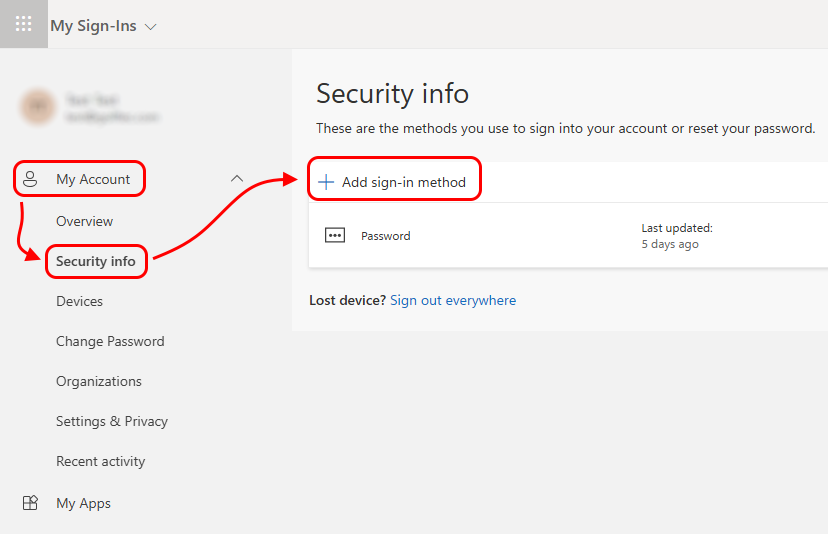
3. Click "My Account > Security info > Add sign-in method"
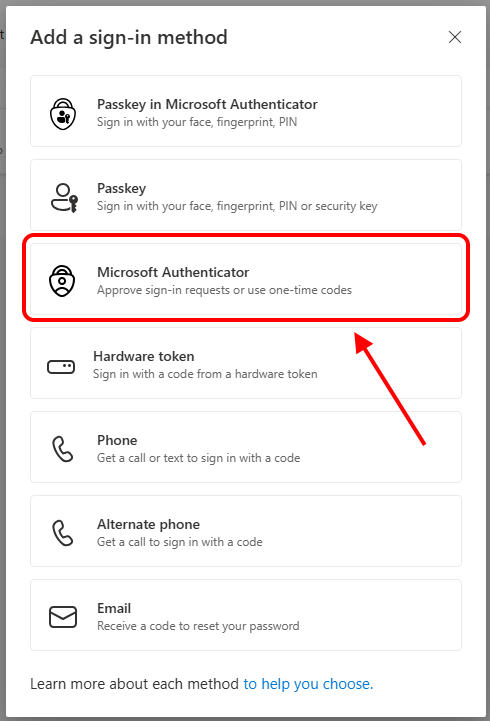
4. Click "Microsoft Authenticator"
5. Download the Microsoft Authenticator app on your phone or iPad and click "Next".
NOTE: Corporate GOLFTEC Coaches already have the Microsoft Authenticator App pre-installed on their iPads.
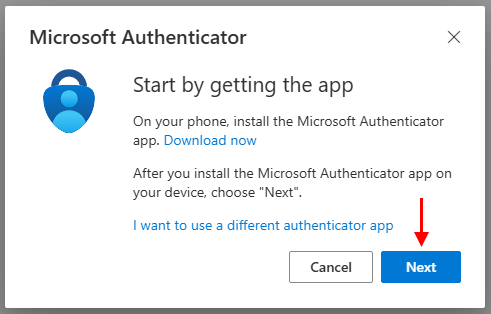
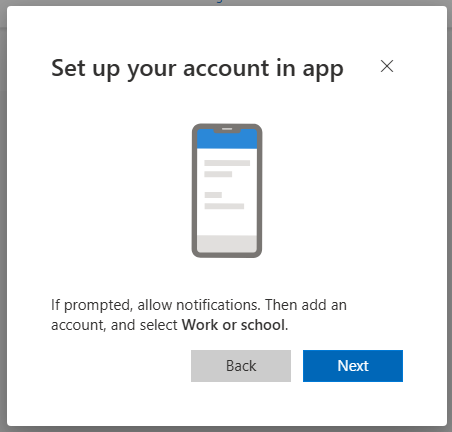
6. Open the Microsoft Authenticator app on your phone or iPad.
7. Click "Next"
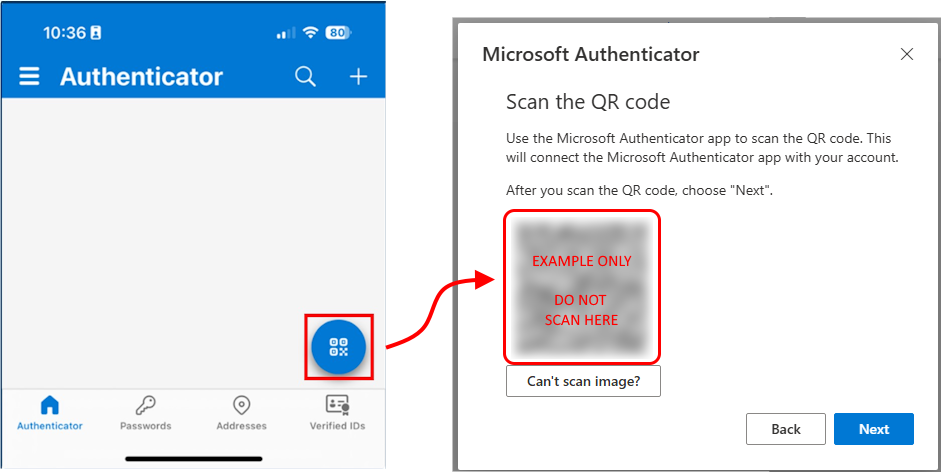
8. Open the Microsoft Authenticator app on your phone or iPad and scan the QR code with your device's camera.
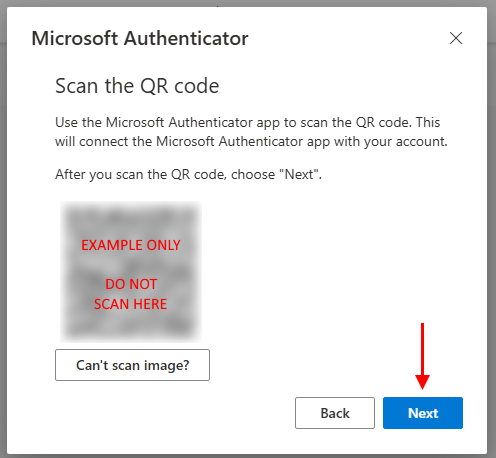
9. After you have successfully scanned the code, click "Next"
10. You will then be asked to enter a code inside your Microsoft Authenticator app to test it out.
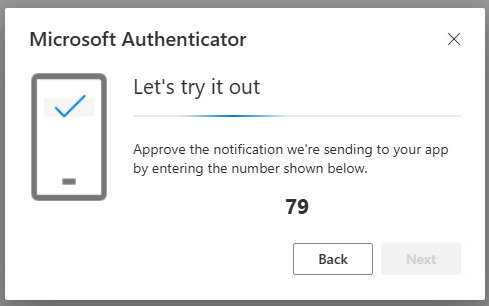
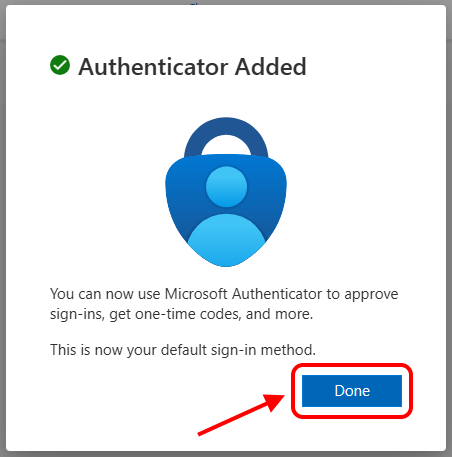
11. A confirmation screen will appear confirming that you have successfully registered the Microsoft Authenticator app. Click "Done".
12. It is also recommended that you also add your personal Phone number as another "sign-in" method. (In the event that you do not have access to your Microsoft Authenticator app, you can still sign in with a code texted to your phone)
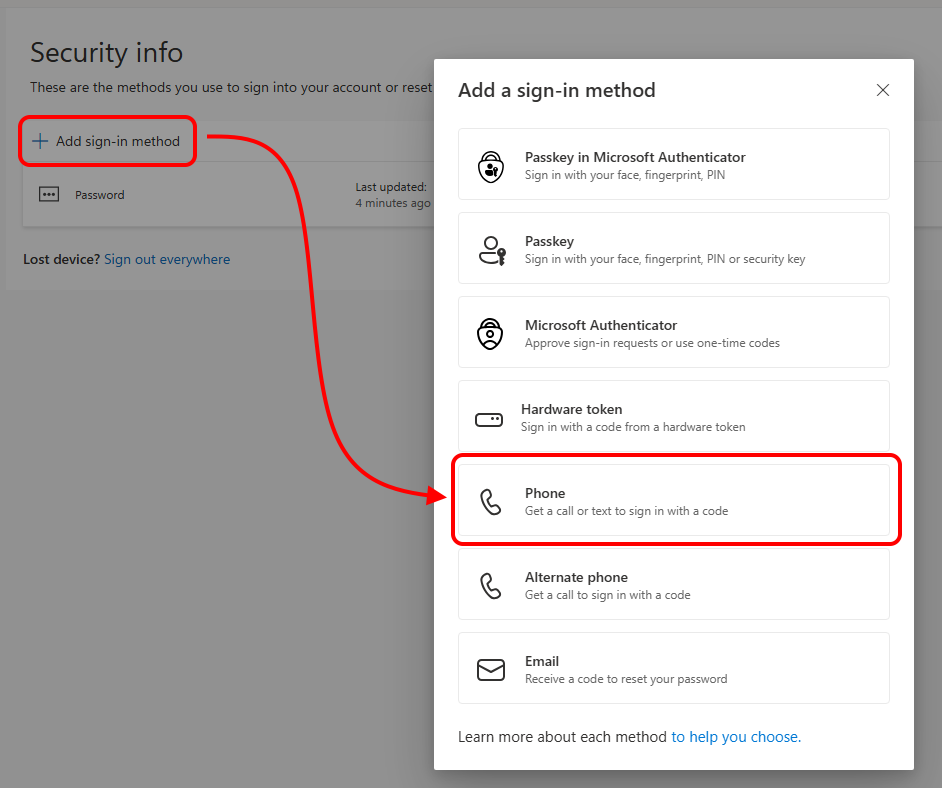
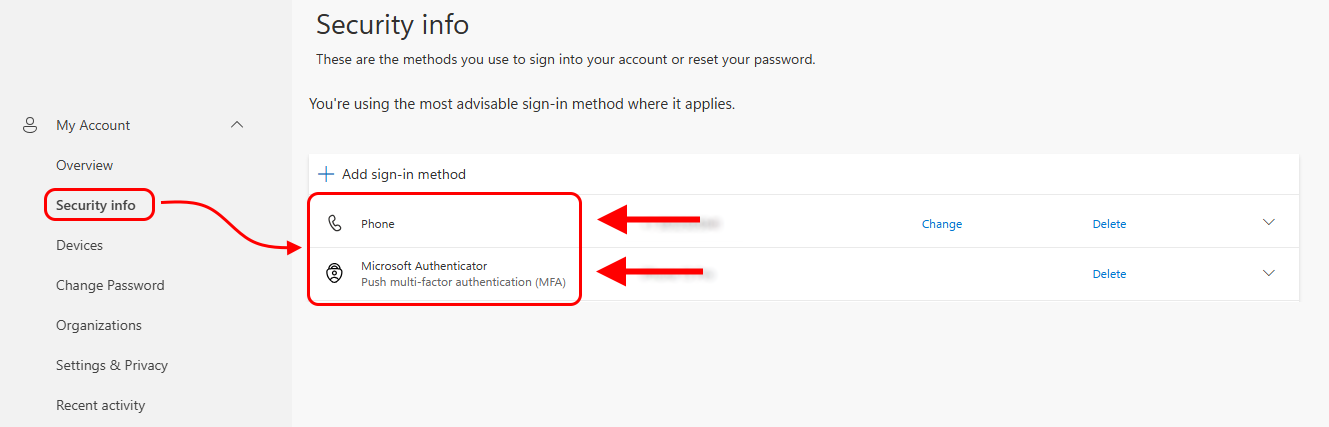
13. Once you have both the "Microsoft Authenticator" and your "Phone" configured for sign-in methods, then you are done!