


 2267
2267
- The following steps will work for both iPads and iPhones.
- These steps also assume you are running iOS 18 or higher.
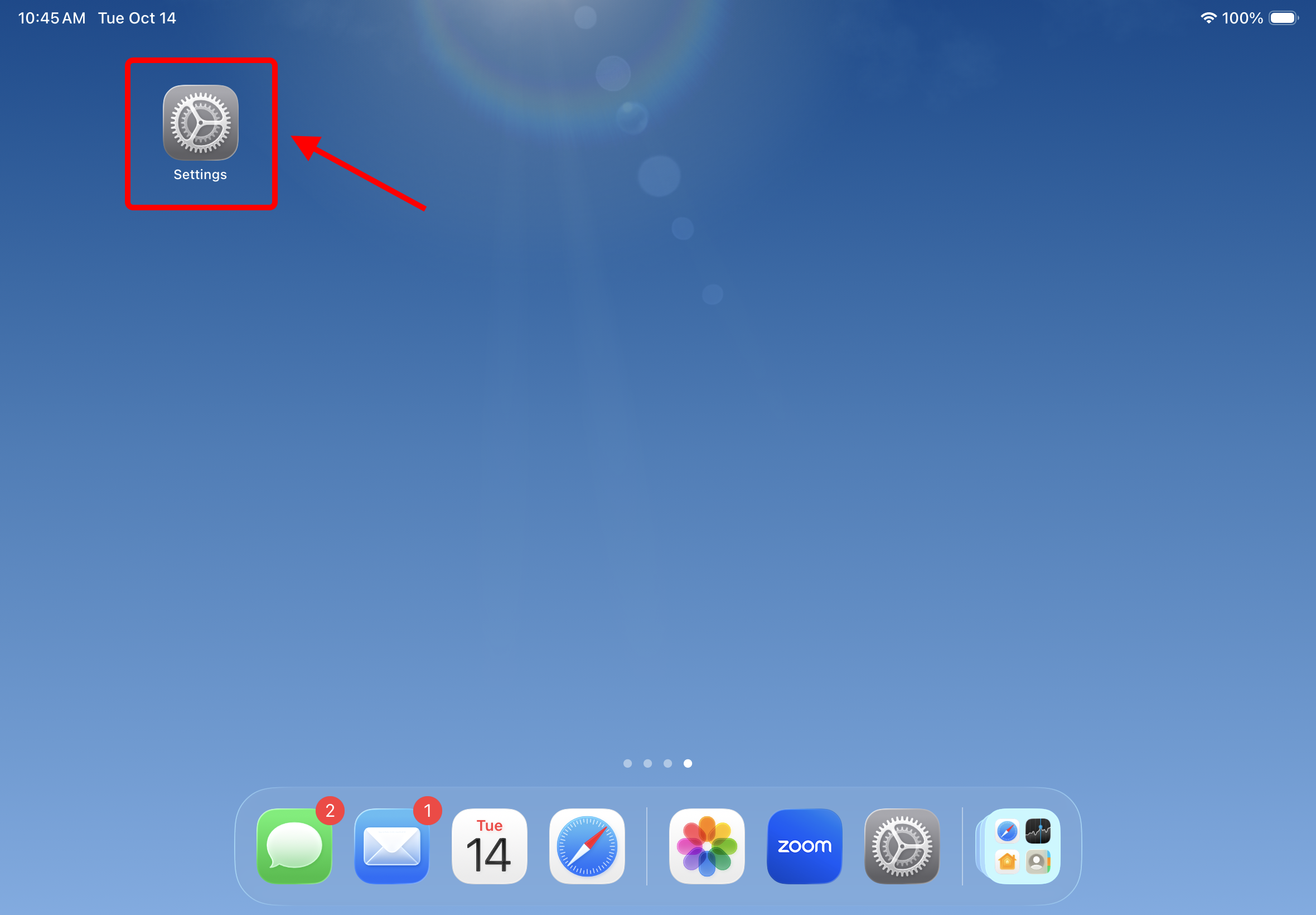
1. Open Settings
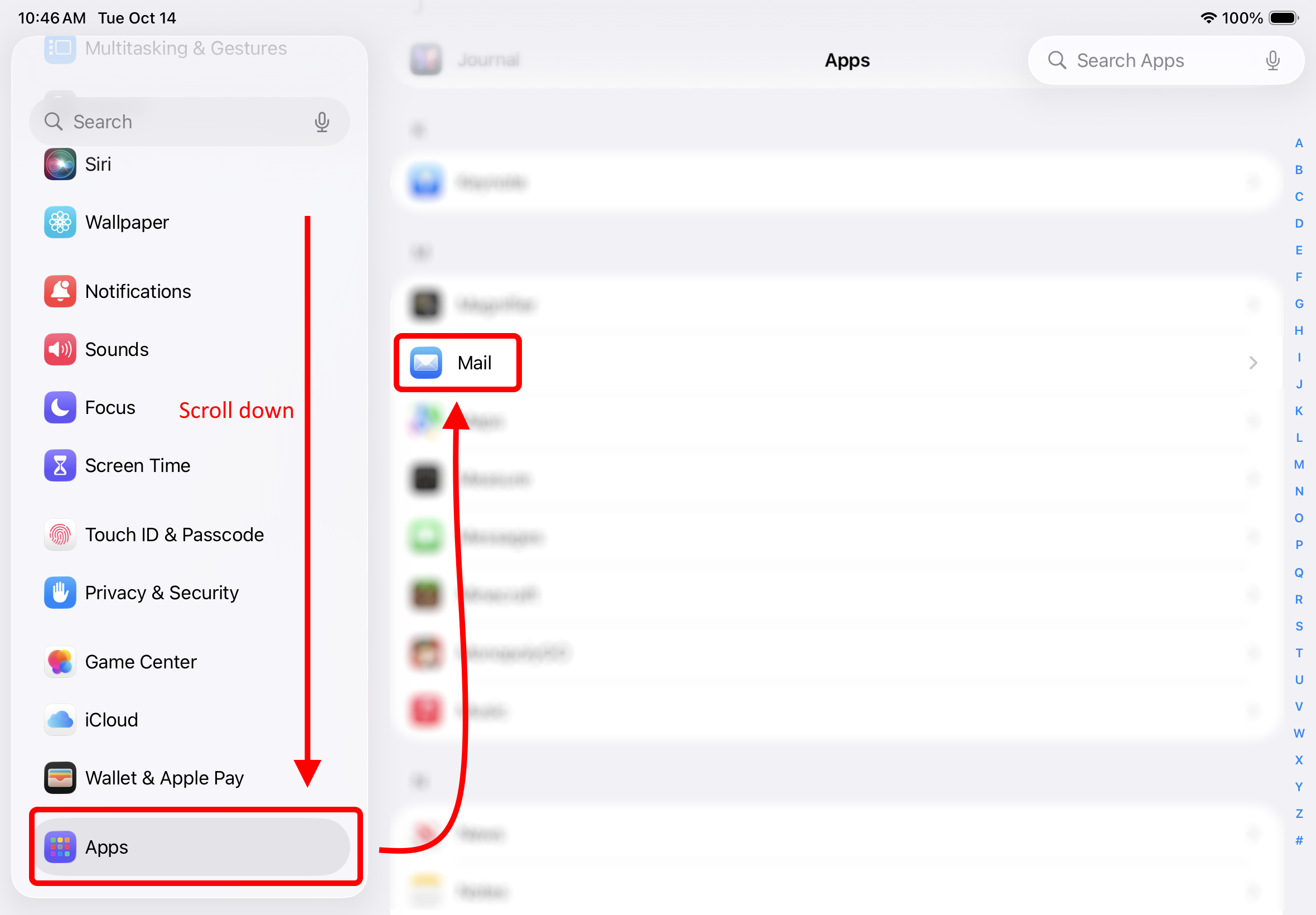
2. Scroll down and tap "Apps" > "Mail"
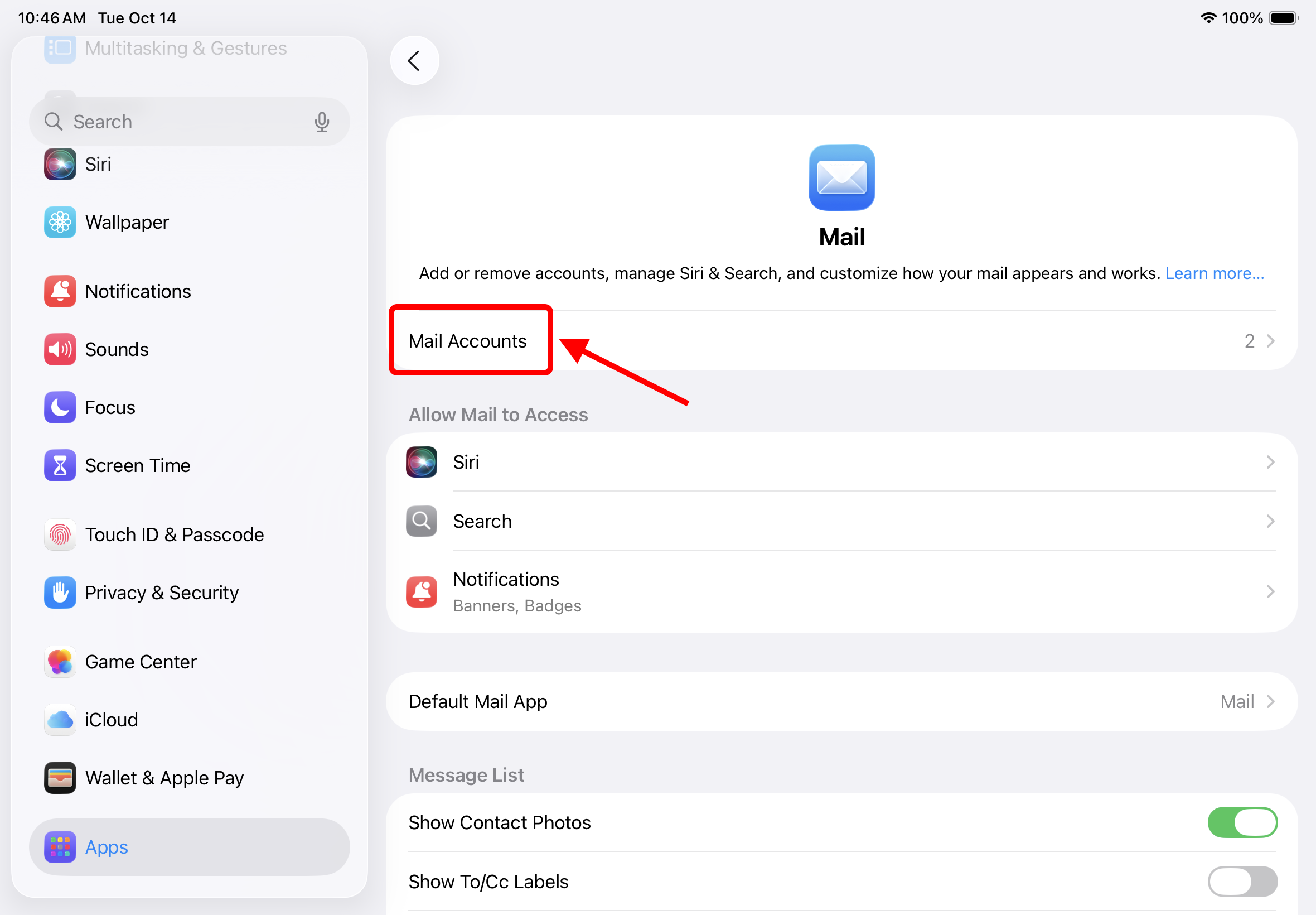
3. Tap "Mail Accounts"
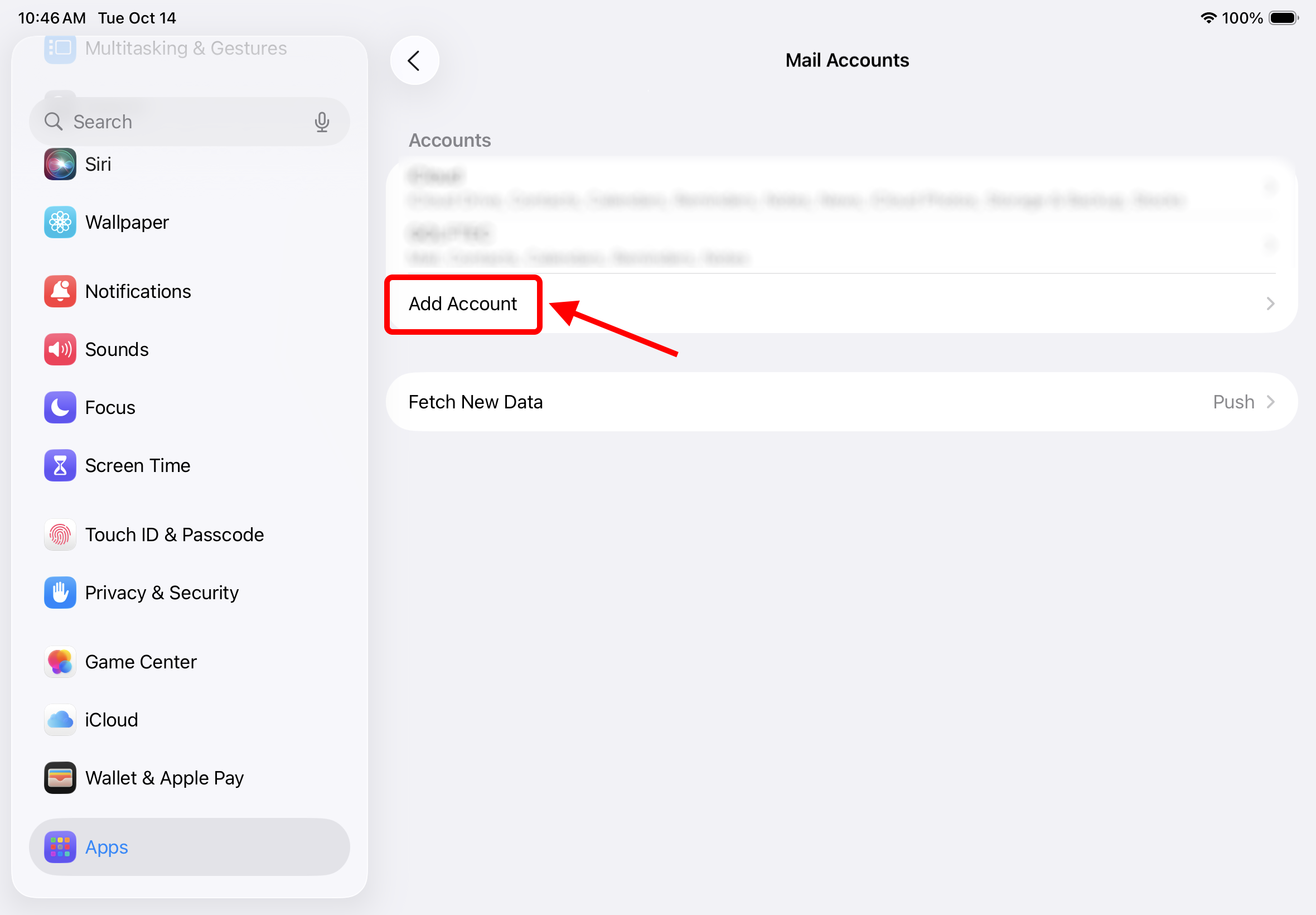
4. Tap "Add Account"
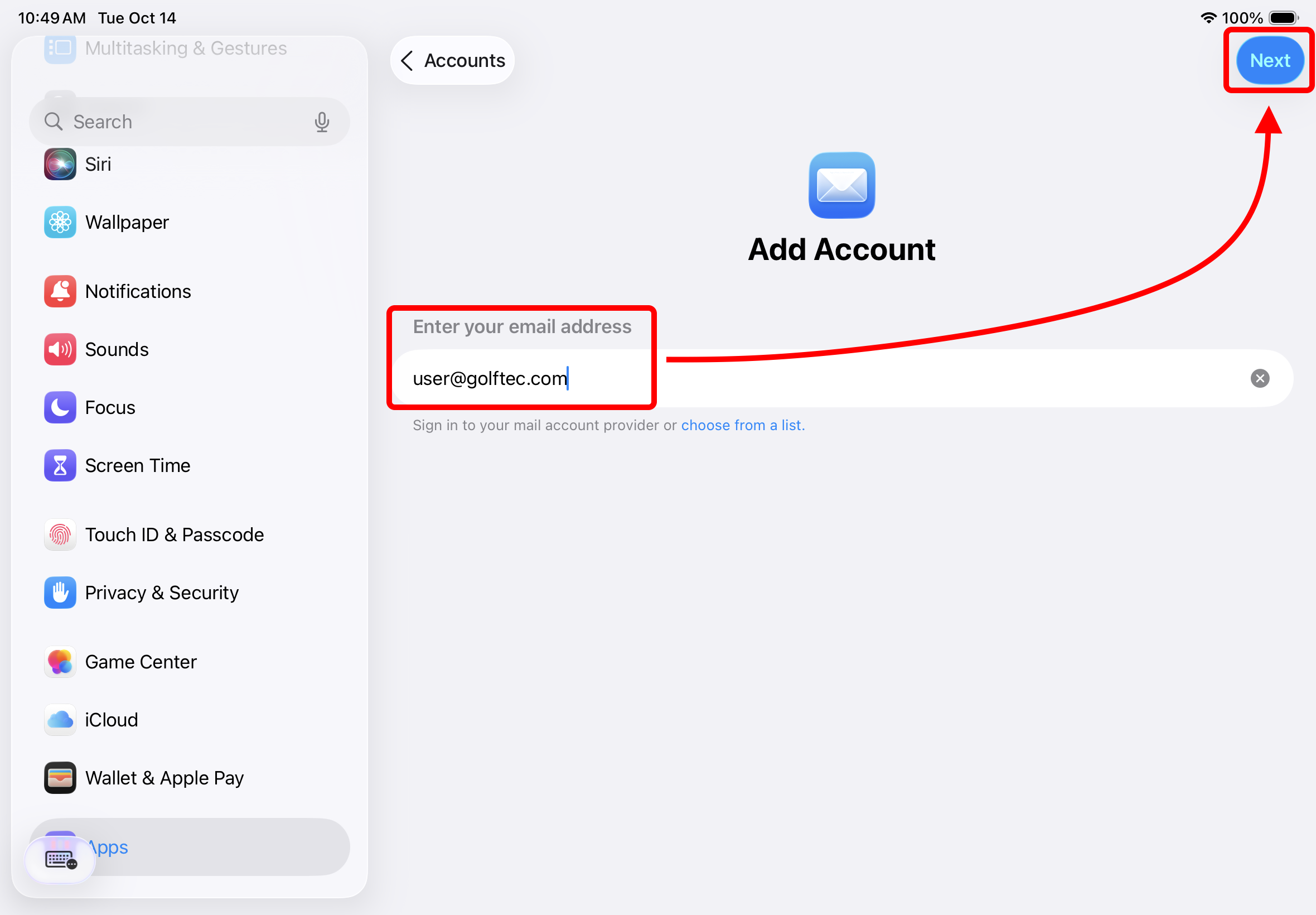
5. Type your email address and tap "Next"
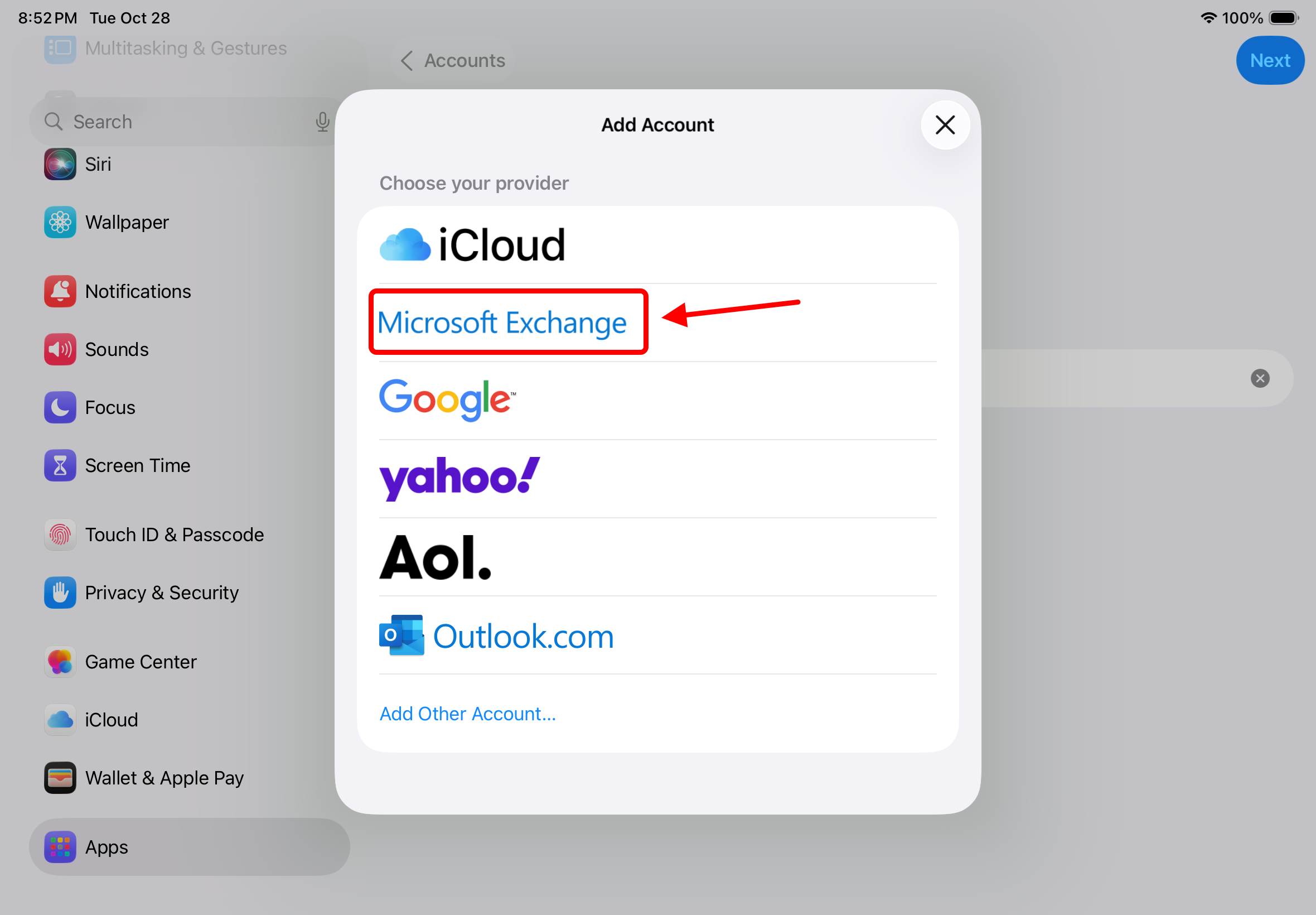
6. Tap "Microsoft Exchange"
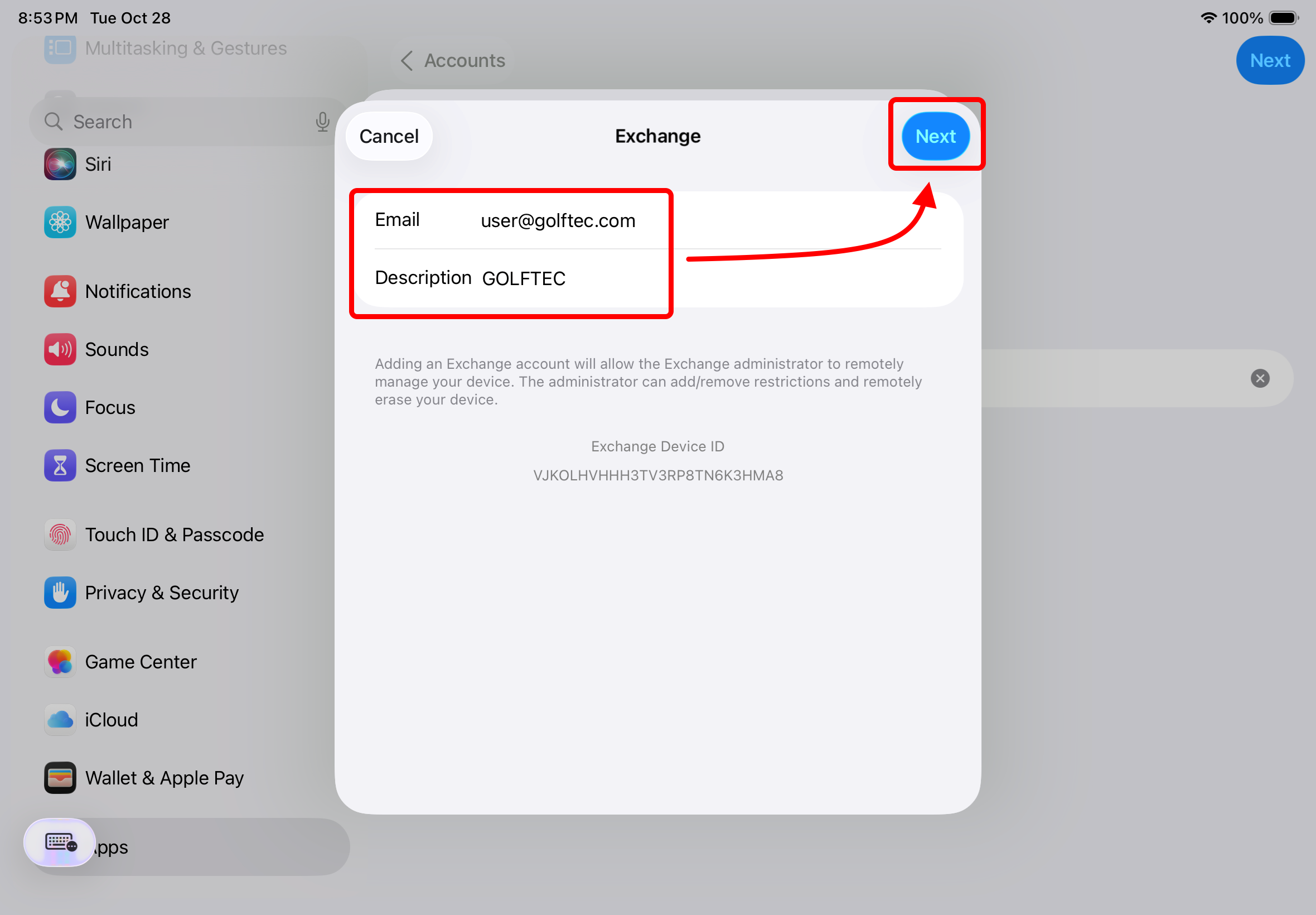
7. Type your email address and "GOLFTEC" for the Description.
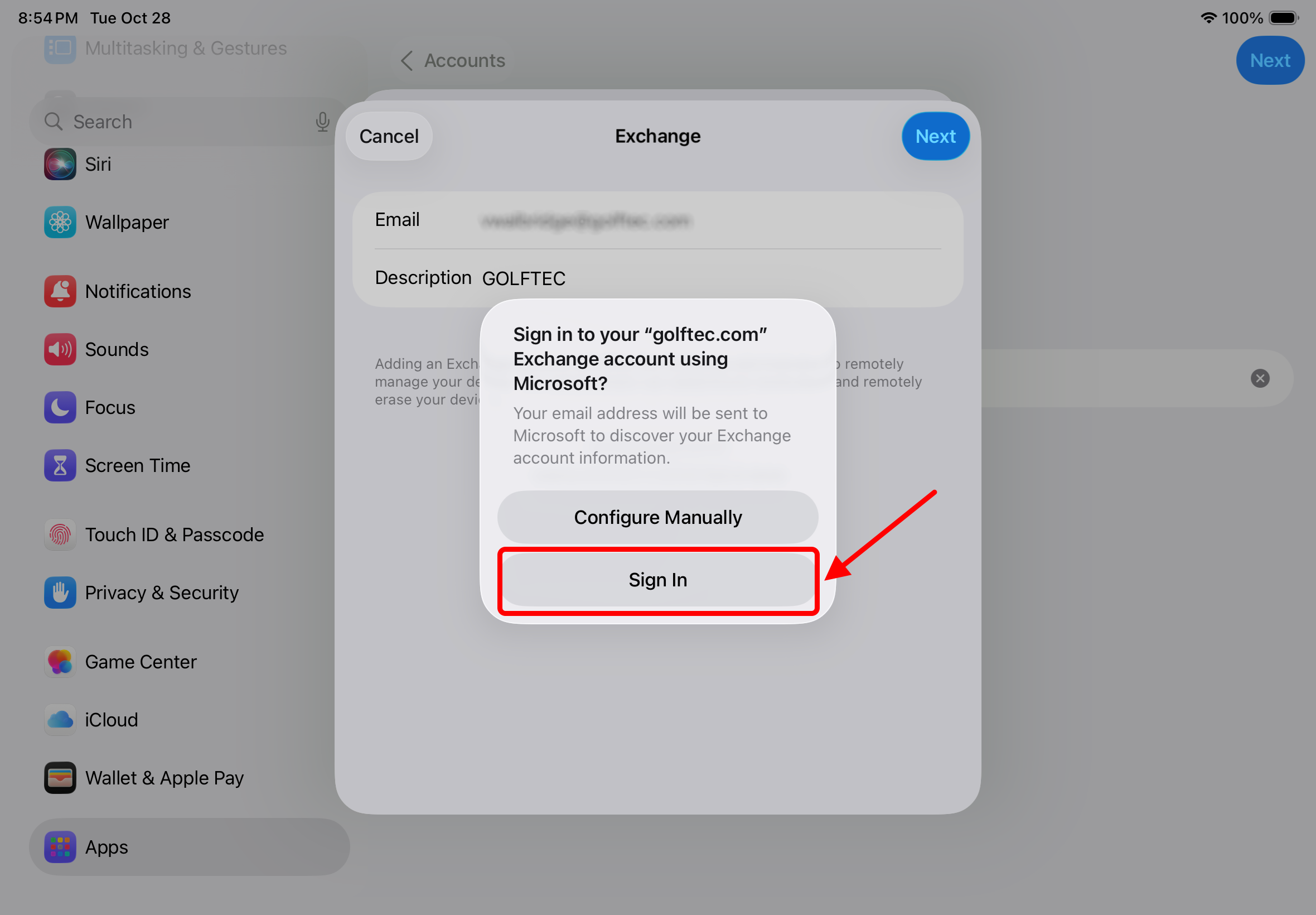
8. Tap "Sign In"
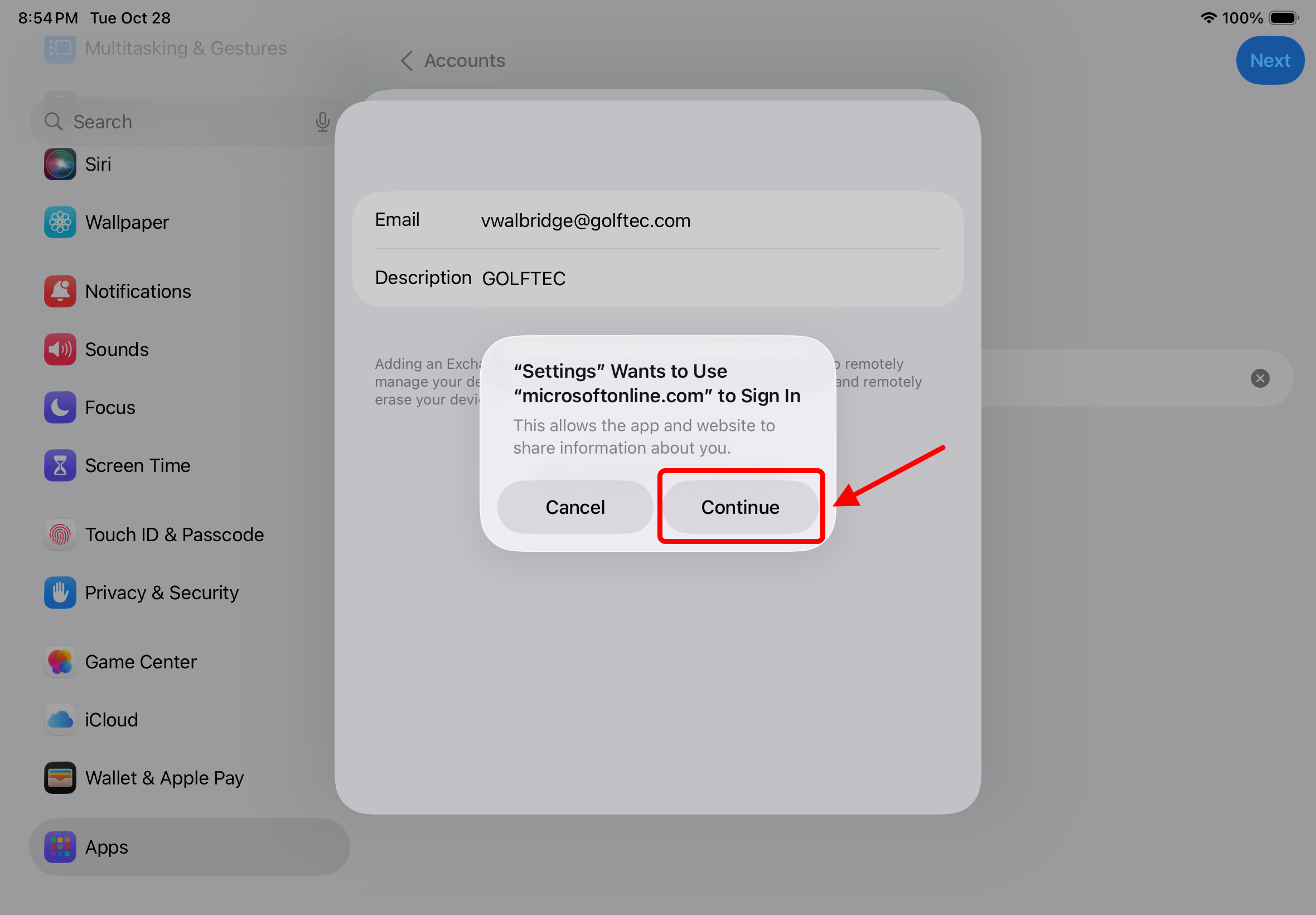
9. Tap "Continue"
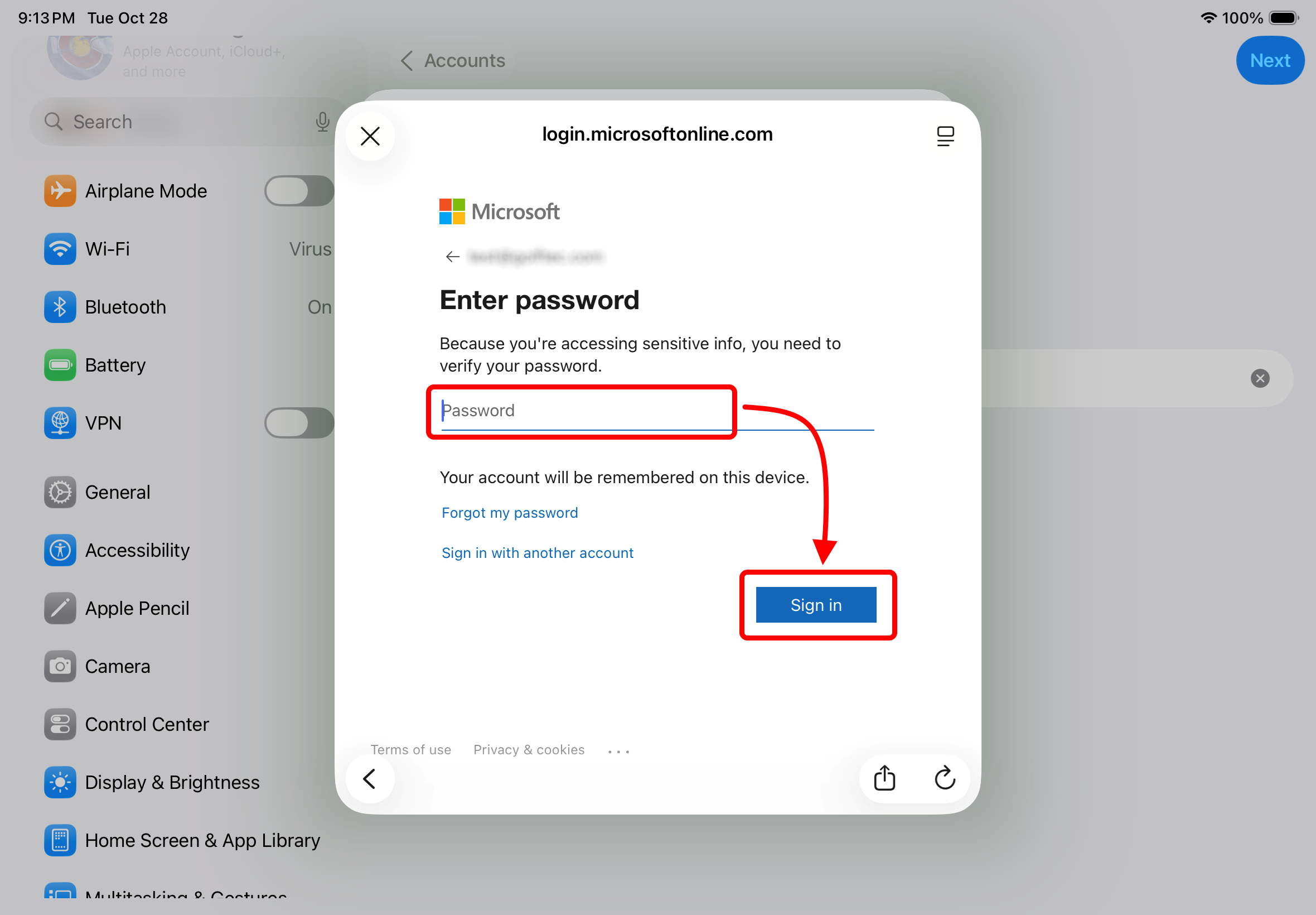
10. Type your email password and tap "Sign in". (If multi-factor authentication is enabled, follow the instructions to verify your identity (e.g., by entering a one-time code).
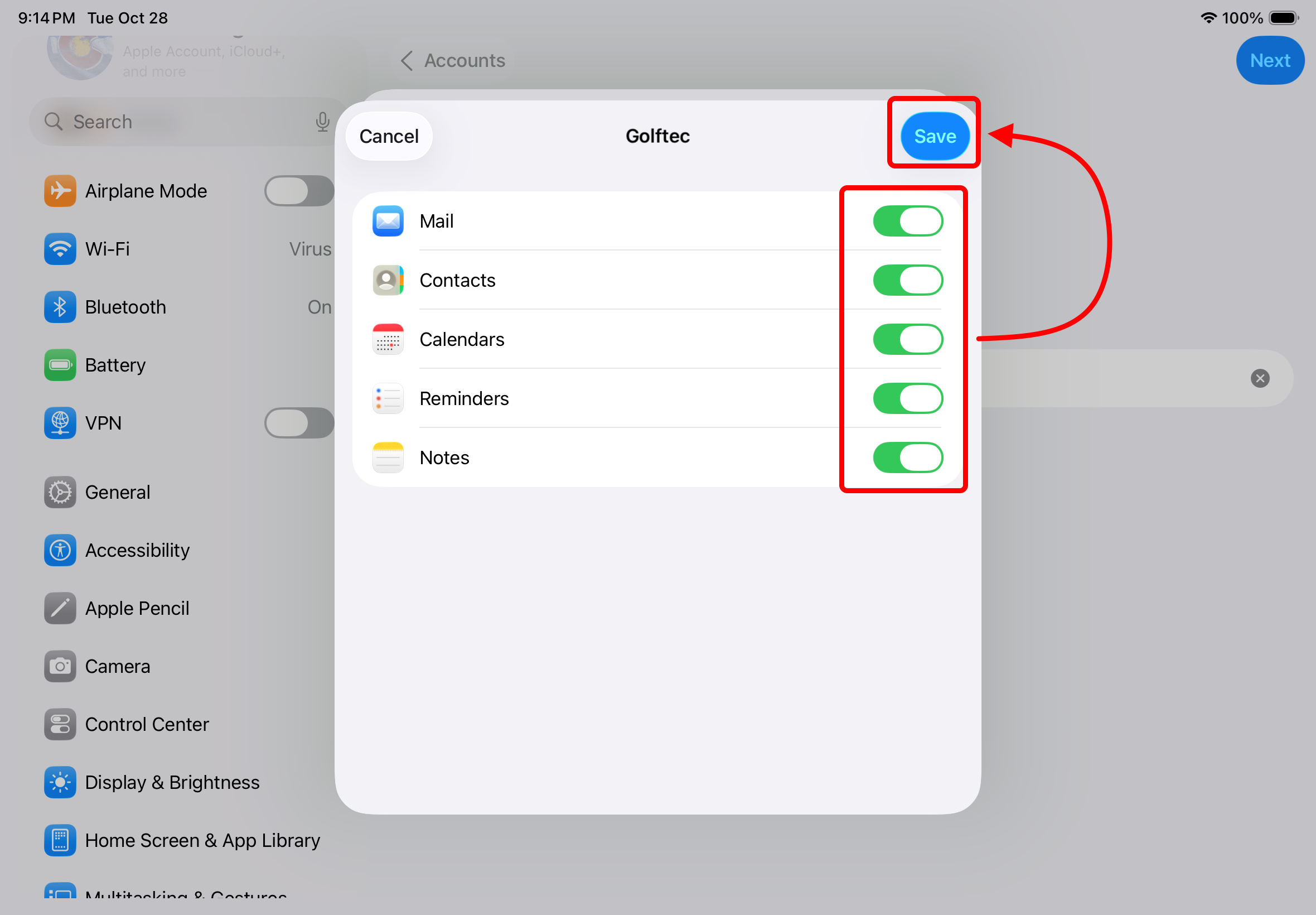
11. Ensure all mailbox options are checked green and tap "Save"
12. Email should now be successfully set up on your iOS device.
NOTE: If you are having trouble with any of the steps above (or don't know your email password), please submit a ticket at support.golftec.com and the Center Support team will help.

