


1. Go to https://aka.ms/mfasetup on a computer not your iPad. You will need your iPad or a mobile device for later steps.
2. Once there, sign in to your email. It may prompt you to verify a code using your phone number. If you do not get a text, your phone number is wrong and you need to submit a tec ticket to fix it.
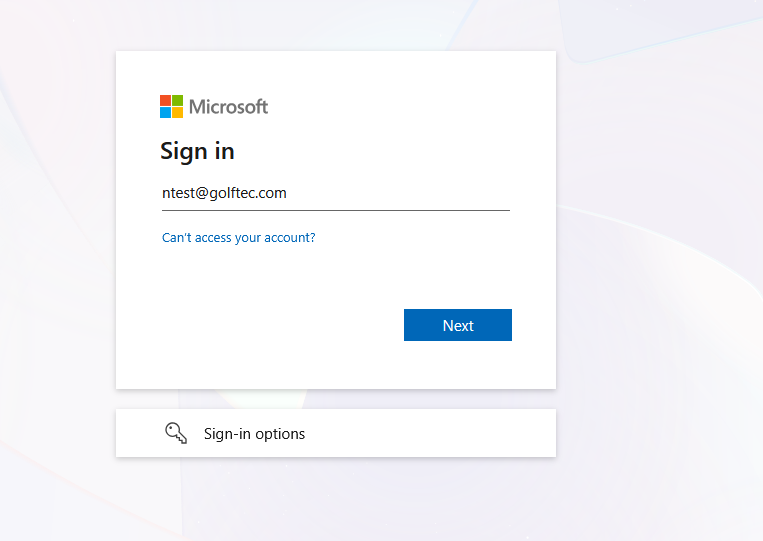
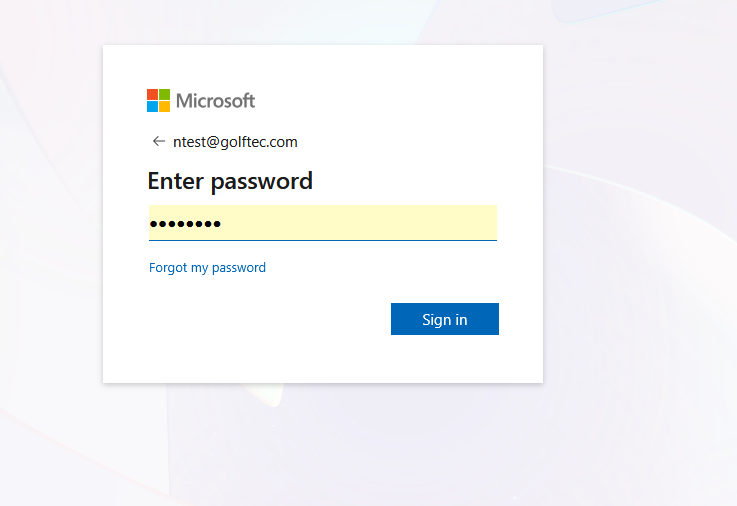
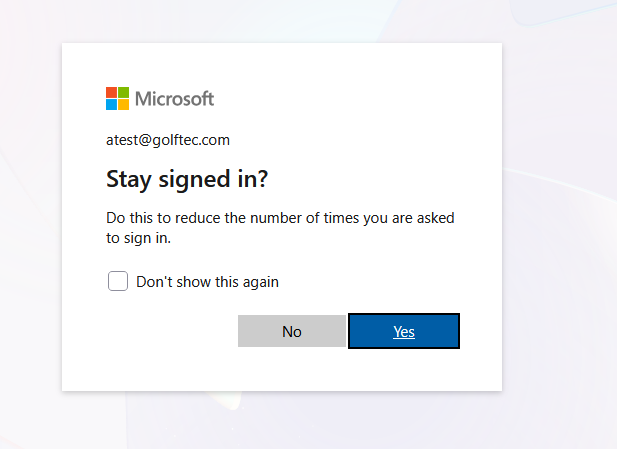
3. Then you'll be prompted to set up MFA if you have it enforced or you will be brought to the main menu if not. If you get the screen below, click next and go to step 4. Otherwise, look at the following screenshots.
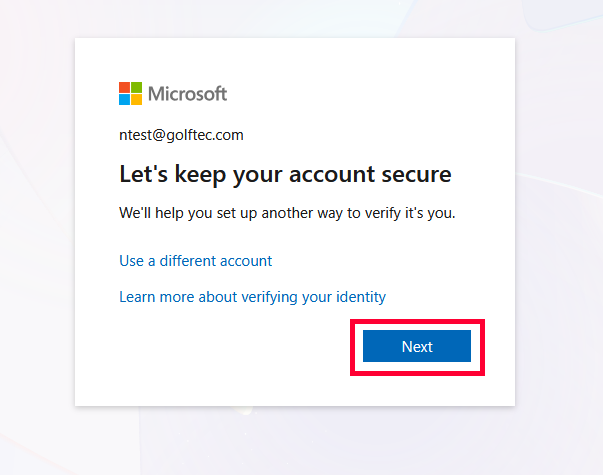
3b. You will get to a screen that looks like this if you do not have MFA enforced. Click these buttons and move on to step 4.
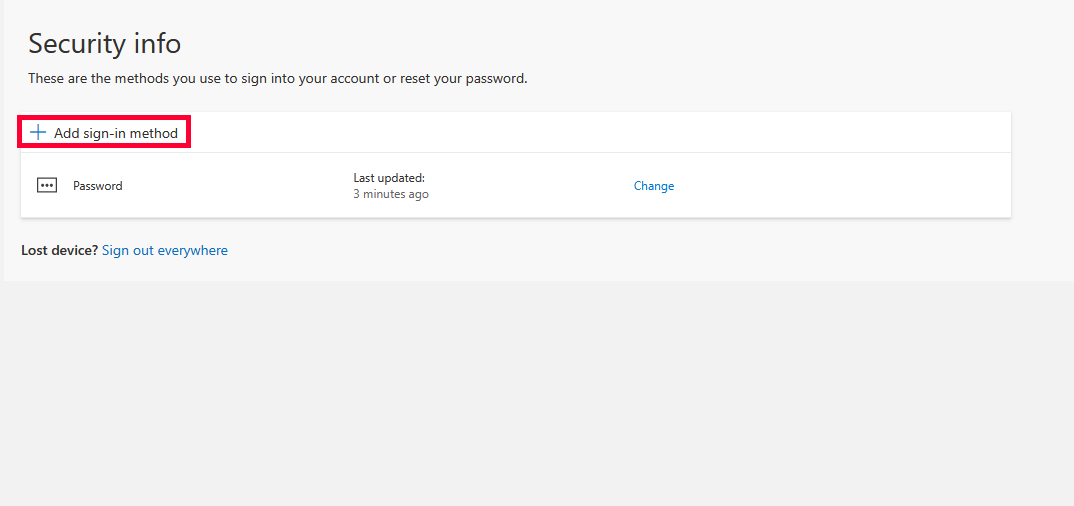
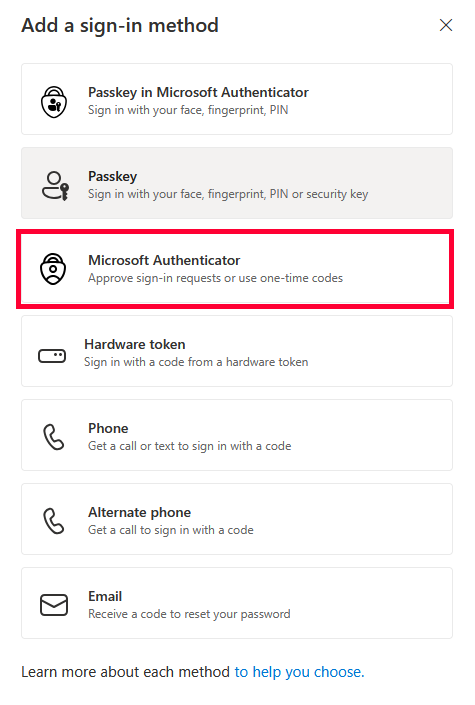
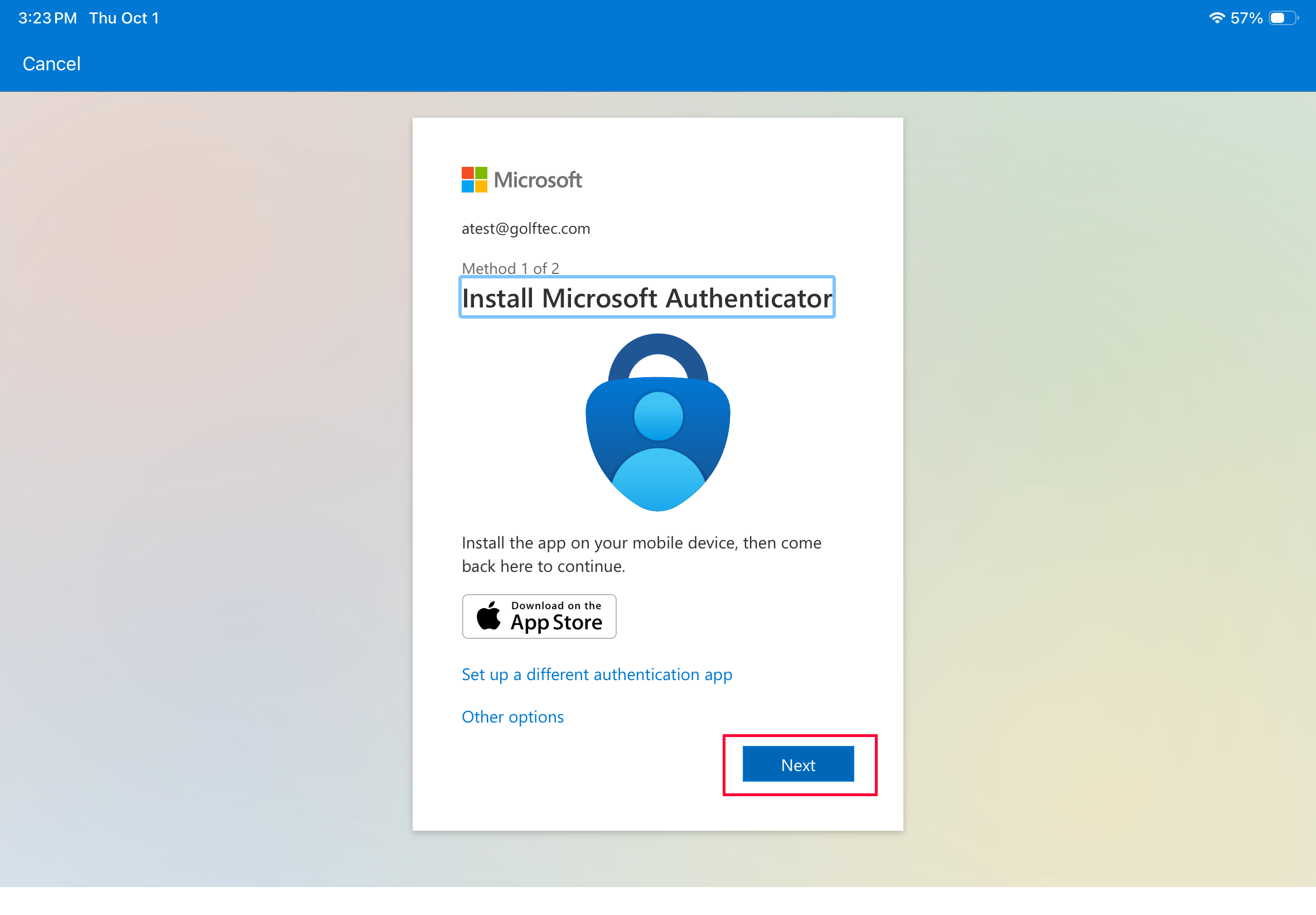
4. You will be prompted to get the Microsoft Authenticator. Coach iPads already have this downloaded to them.
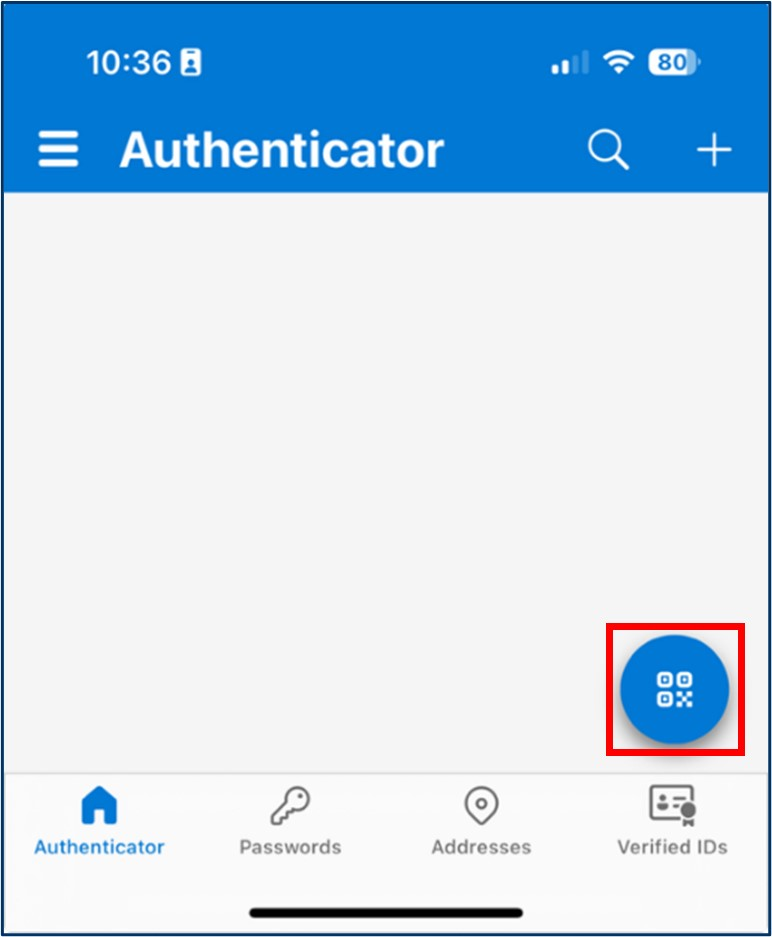
5. Open the microsoft authenticator app on your iPad or mobile device. In the bottom right of the app, there will be a blue button for scanning a QR code, click that.
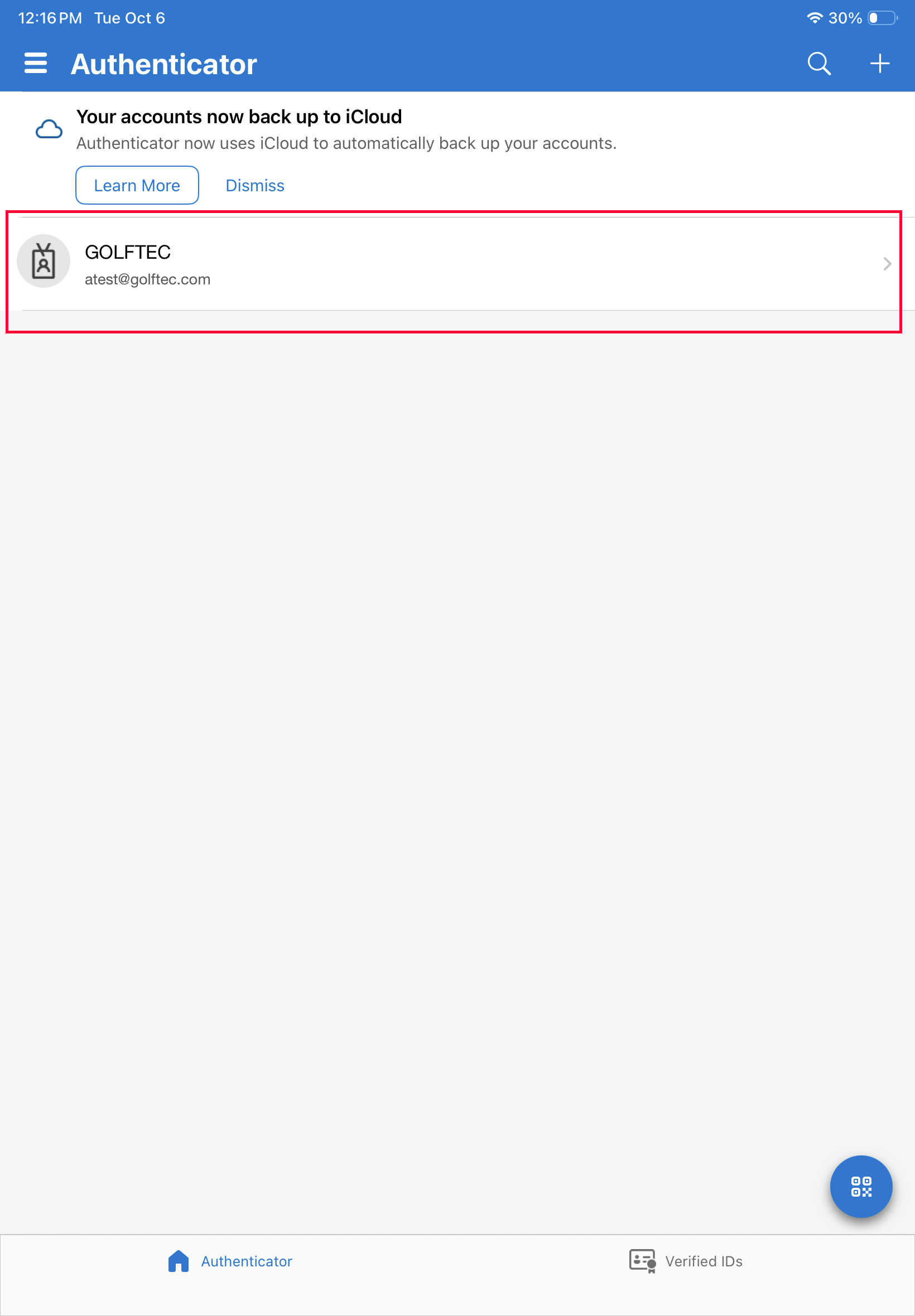
6. Scan the QR code with your iPad. It will add an account that looks like this:
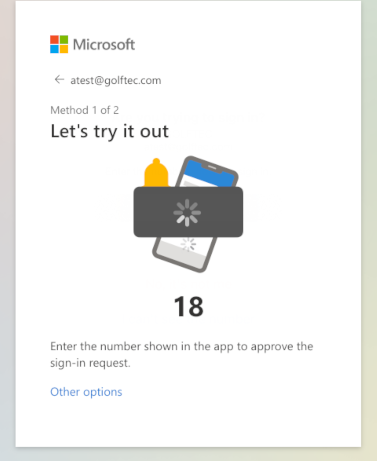
7. Go back to the computer now and click the 'next' button below the iPad. It will push you a code:
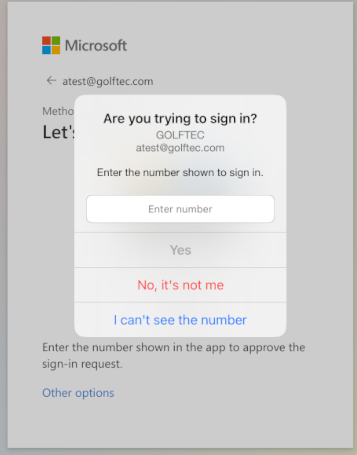
8. Go back to your iPad/mobile device and enter the number you see
9. Click done.
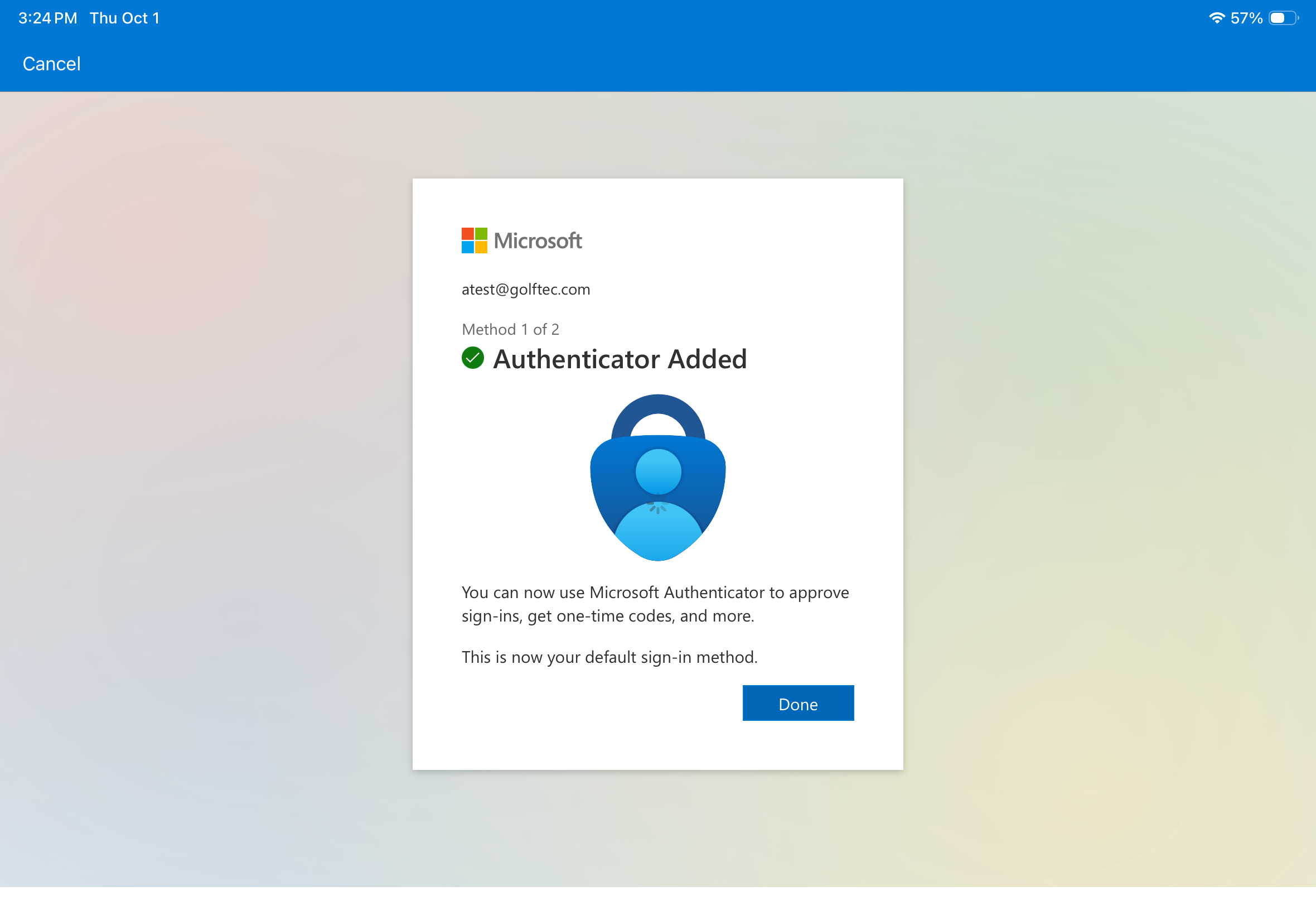
You have now completed MFA and your email is secure.
Thank you. Any questions should be directed to the IT department via a tec ticket.

