Troubleshooting Your Quad

Dec 18, 2025
 47
47
Here are some steps for troubleshooting your quad if it's not connecting to your bay:
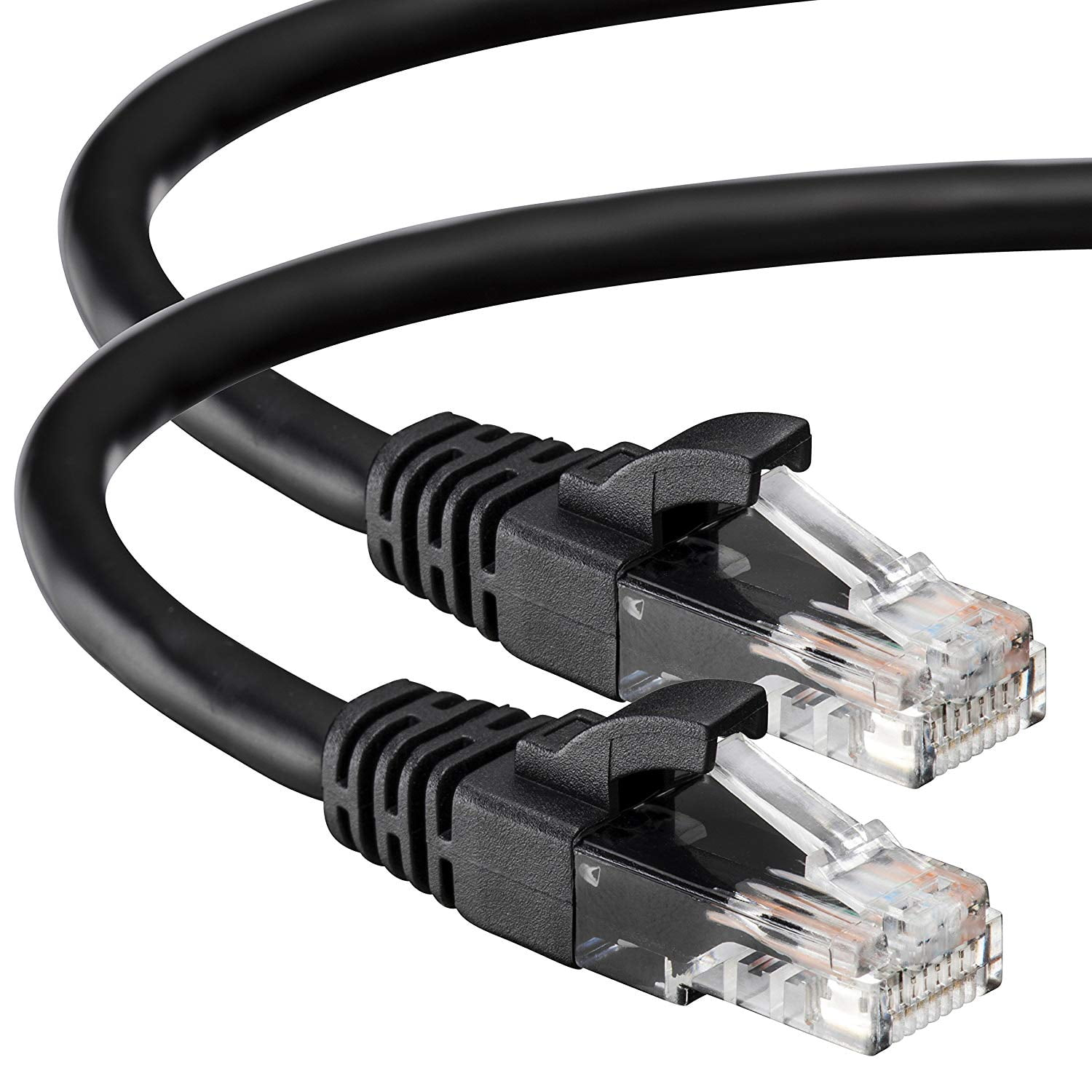
- Make sure you are using an ethernet cable (imaged below) to connect your quad to your bay, not a USB-C (imaged below). This is the SOP that all techs will advise. If you have a L/R bay and no ethernet long enough, test with a shorter one, then let the tech know if the ethernet cable helped and the tech can advise a compatible, reliable, and long enough ethernet cable to be ordered to your center.
- Test out a new ethernet cable. Sometime hardware goes bad, that includes cables.
- Try changing the port that the quad is plugged in to on the netgear switch.
- Try closing out of TS and Skytrak, unplugging the netgear switch from power, restarting your computer, plug the netgear switch back in to power, and then re-open TS and Skytrak.
- Make sure your Skytrak software is up to date. The current version at the time of this article [12/18/2025] is 6.0.227, but that varies month to month, so ask the tech helping you to make sure your Skytrak software is up to date.
- Update your Quad's firmware using this article: How to Update Firmware on GCQuad or QuadMAX – Foresight Sports
- Finally, if nothing else gets your quad working, it's time to move it to another bay. Take the quad out of this bay and move it to another, this will let us know if the issue is with the quad or with something else in the bay.
- If the Quad doesn't work in another bay, then reach out to Foresight support here and let them know about your connection issue: https://help.foresightsports.com/hc/en-us/requests/new
- If the Quad does work in another bay, reach back out to your tech letting them know you've walked through all of these steps and nothing has fixed the issue
For reference:
USB-C

Ethernet