


The following steps will outline the process of enrolling your Workday account into 2FA.
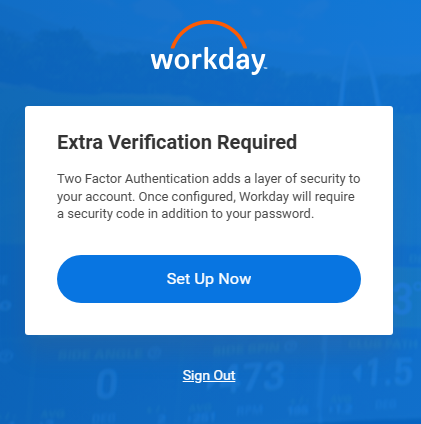
1. When 2FA is enabled on your Workday account, the next time you sign in, Workday will ask you to begin the setup of 2FA.
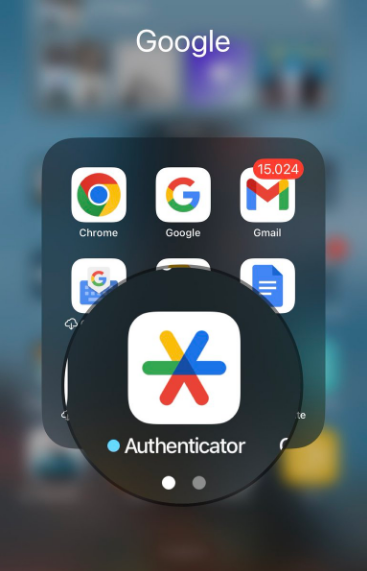
2. Open the Google Authenticator app on your mobile device. (Corporate Coaches already have the Google Authenticator pre-installed on their company-issued iPad). If you don't have the Google Authenticator app, you can get it from the Apple App Store or the Google Play Store.
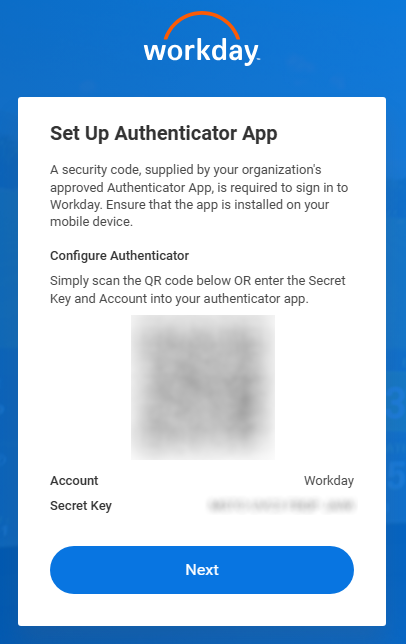
3. Scan the QR code using the camera button inside the Google Authenticator app.
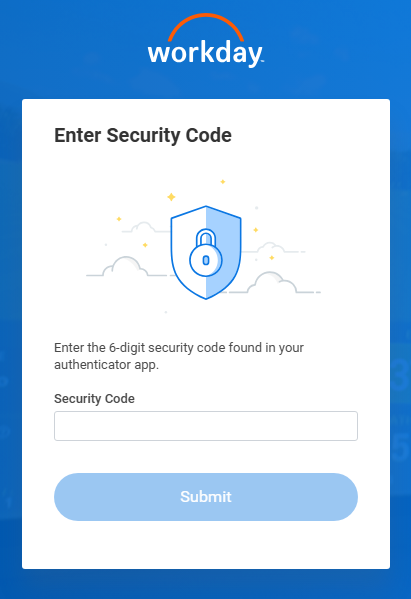
4. After scanning the QR Code, you will be asked to enter the 6-digit code from your app to validate.
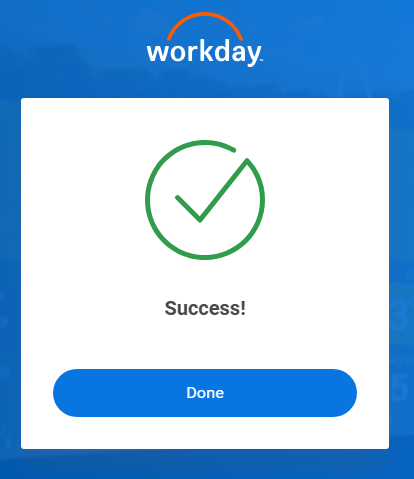
5. If the code is accepted, then you should get a "Success" confirmation screen.
6. Keep your Authenticator code handy in the future. Anytime you log into Workday from a new device, you will be prompted to enter your 2FA code.

