


 149
149
First, make sure the coach monitor is set to the main display. Go to Windows setting->System->Display:
You are going to have something like this. Most centers will have 3 monitors (all the same size) that are stacked vertically. Some will have them in an L shape. It's all based on preference.
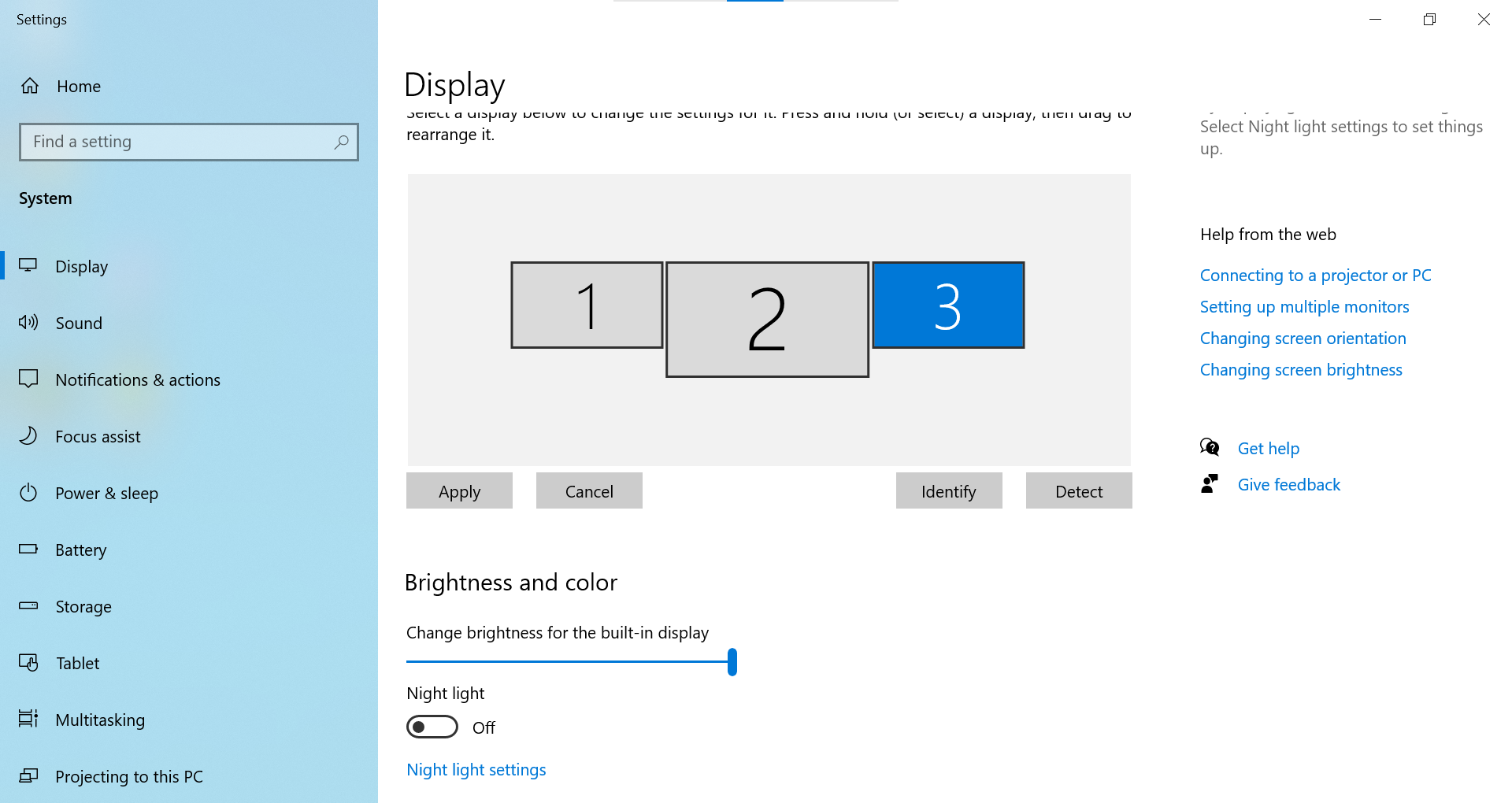
Find the monitor that is your coach monitor by hitting identify. This will put numbers on each screen. Which ever number is on your coach monitor is the one you want to choose. Going back to the image above, click on 1, 2, or 3 (whichever one is the coach monitor) so it gets highlighted blue.
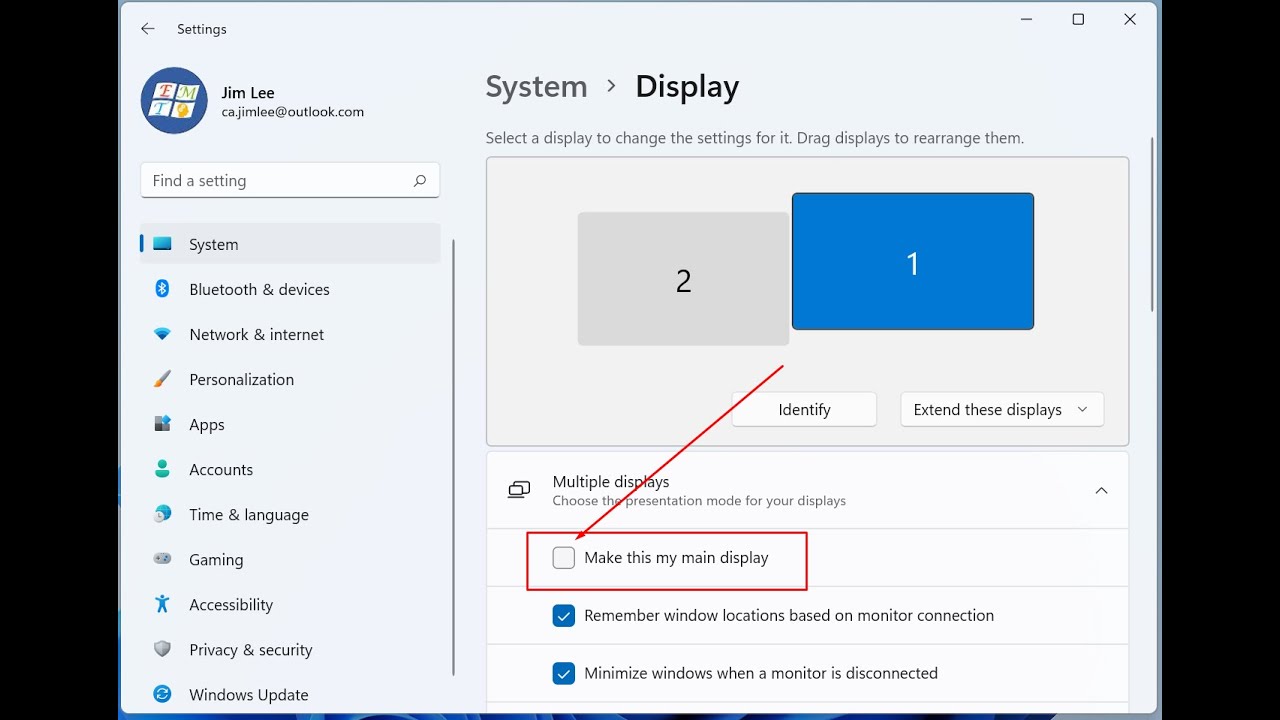
Then scroll down until you see the 'multiple displays' section. Click it to expand it and choose 'Make this my main display'
Next up is making sure Skytrak opens on the projector instead of somewhere else. Many coaches just use the F12 button to move it every day, but did you know there is a way that you never have to do that again and it will always open on the projector?
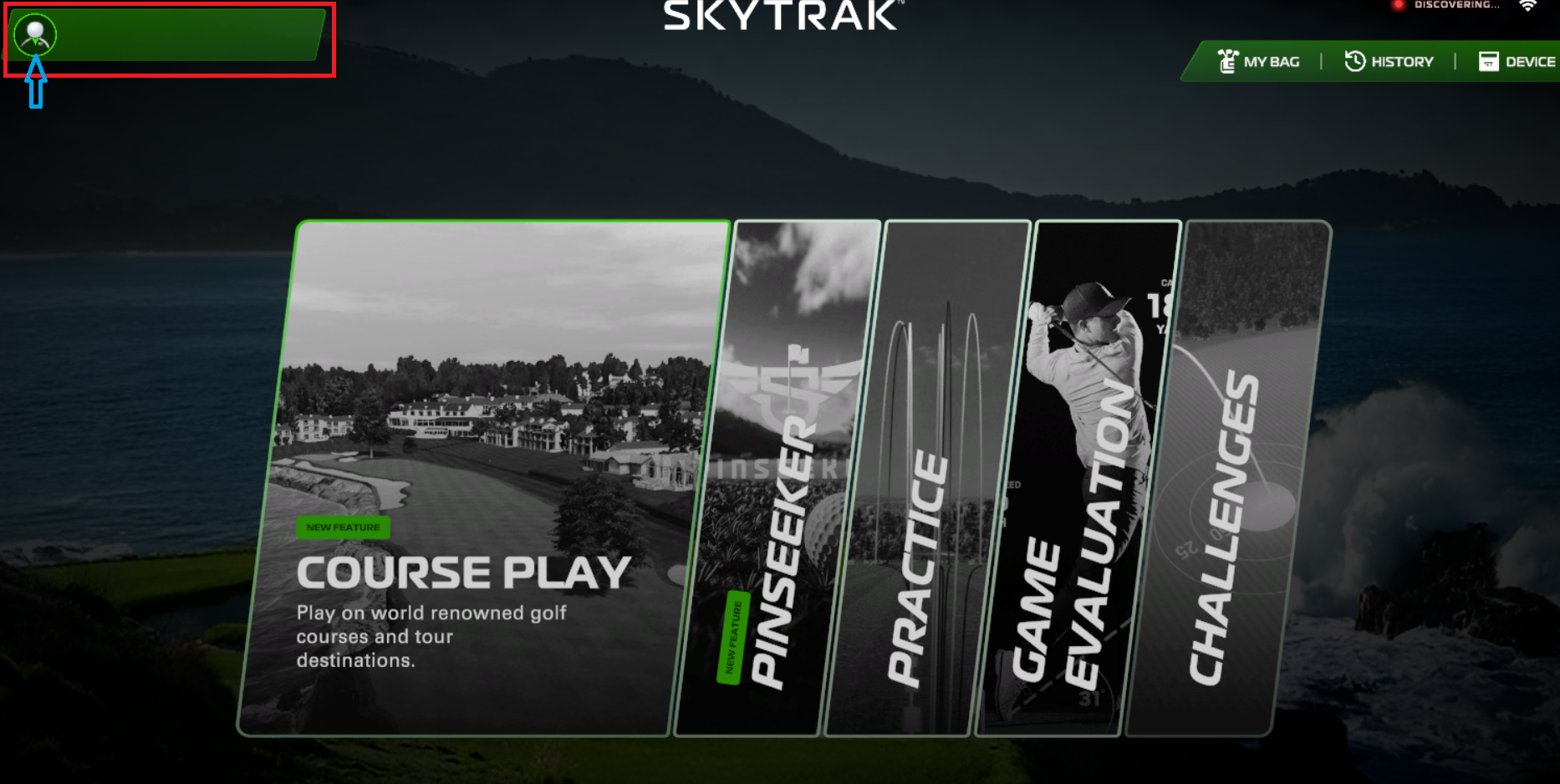
Open Skytrak and click 'Use as Guest'

Then click this settings button that is kind of hidden:
Finally, keep choosing between these monitors until Skytrak moves to the projector. Once that's done you'll never need to move it again with F12!
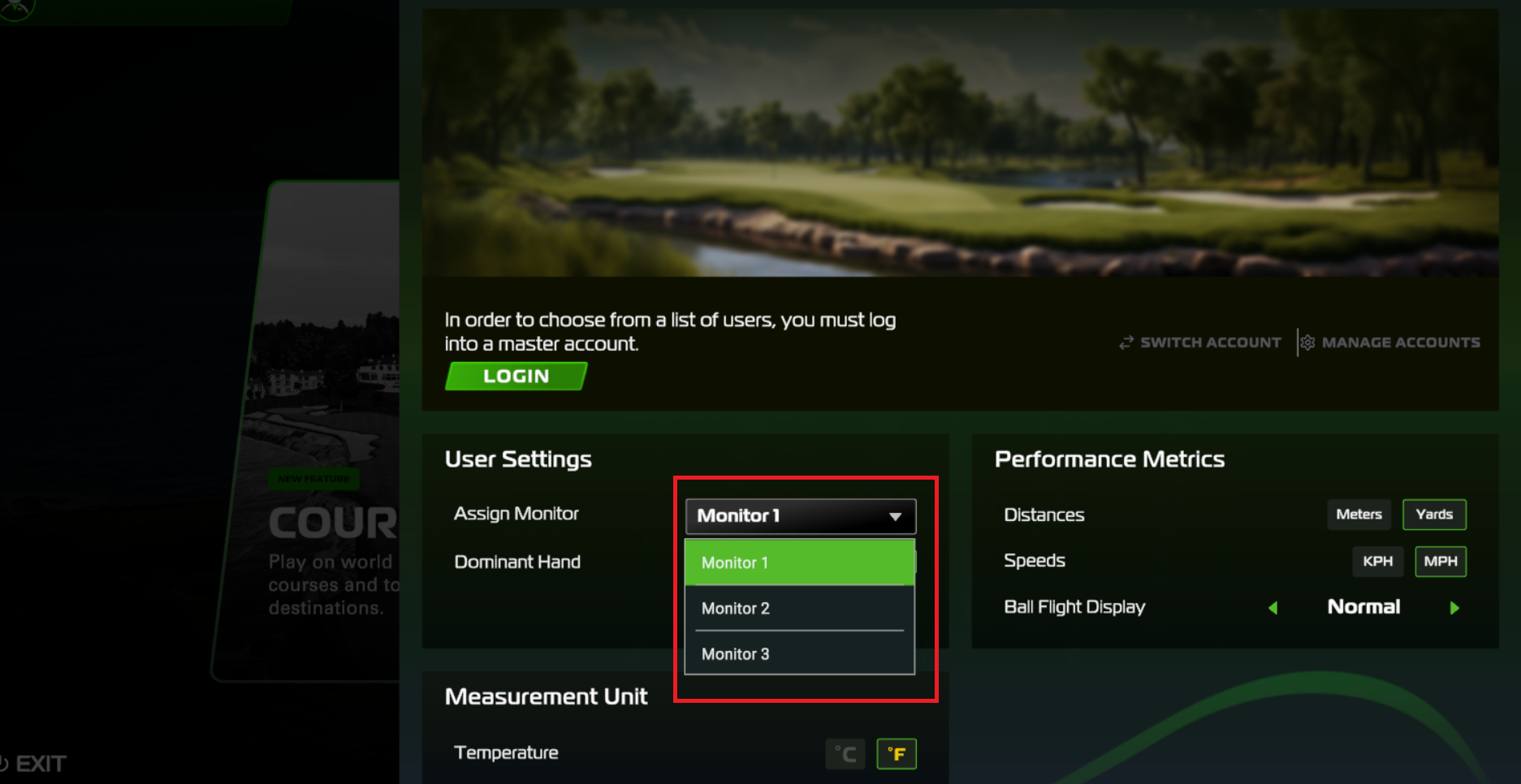
Lastly, you need to get the student screen in the right spot. If the student screen is opening on the projector or on the coach monitor, let the IT team know because they will need to change it via the admin settings. Bonus points if you can use the identify button and tell us what number comes up on the student screen so that we can know which one to move it to easily.
Thanks! Let IT know if you are not able to do any of this and we can help you get your bay back to normal!

